← flooringflow.app

FlooringFlow

The everyday guide

How to run a flooring job through FlooringFlow, from the first phone call to the last payment. Every picture in here was taken from the working app, not drawn — if a screen changes, this guide is regenerated and the picture changes with it.

Generated October 2, 2026 at 11:39 PM

Contents

Getting started

Set your company up and find your way around. Do this once, on a laptop or desktop — the office side of FlooringFlow is built for a full-size screen.

1

Create your account

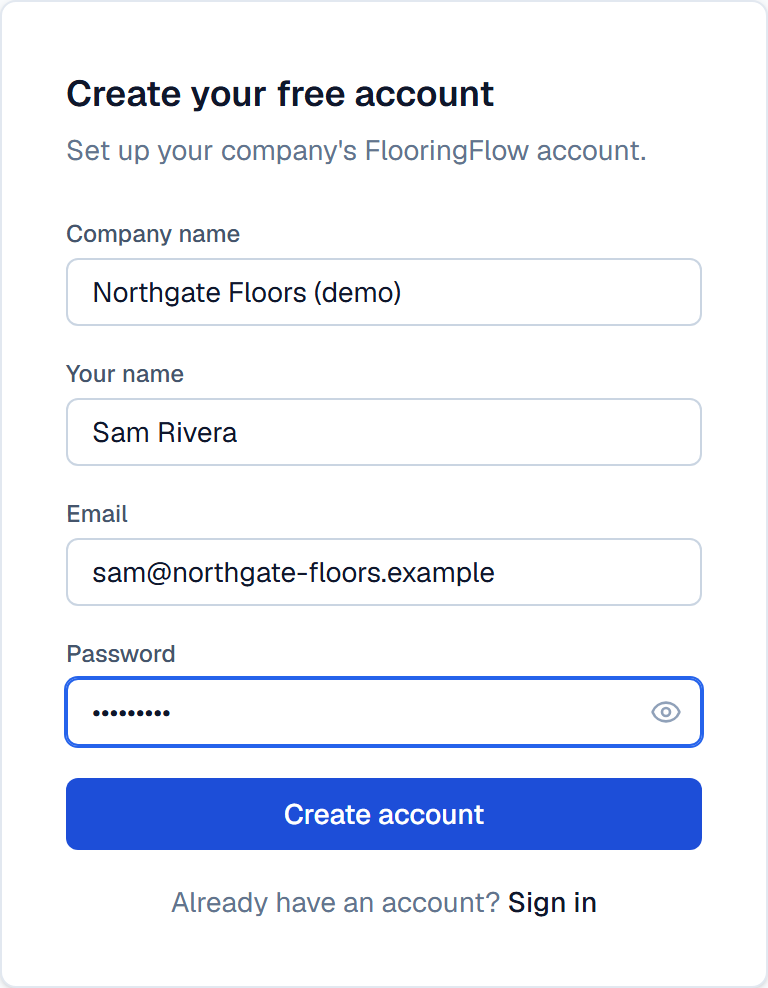
Create your account
Tap the picture to open it full size

What this screen is for

This is the one-time sign-up. Your company name is what your customers see at the top of every proposal and every status link you send them, so put in the name on your truck.

What to do

Fill in your company name, your own name, the email you want to sign in with, and a password of at least eight characters. Then press Create account.

What happens next

You land straight in your own empty FlooringFlow. Nothing is shared with any other company — your customers, prices and jobs are yours alone.

2

Setting up — the part that decides whether your first quote is right

Setting up — the part that decides whether your first quote is right
Tap the picture to open it full size

What this screen is for

Creating the account is not the same as being ready to quote. This is where you tell FlooringFlow the handful of things it cannot guess: what your customers should see on a proposal, one product with YOUR cost on it, and how you charge for labour. It asks one question at a time and tells you what each one costs you if it is left blank.

What to do

Answer the question on screen and press Save and continue. Anything that is not critical has a Skip for now — and the two that are critical have no Skip button, because a quote built without them is wrong rather than incomplete. 'Finish this later' at the top right leaves whenever you want.

What happens next

You can leave at any point and the dashboard keeps the list of what is still open, with a Reopen on anything you passed on. Nothing you skip is lost.

3

Your first day — an empty dashboard

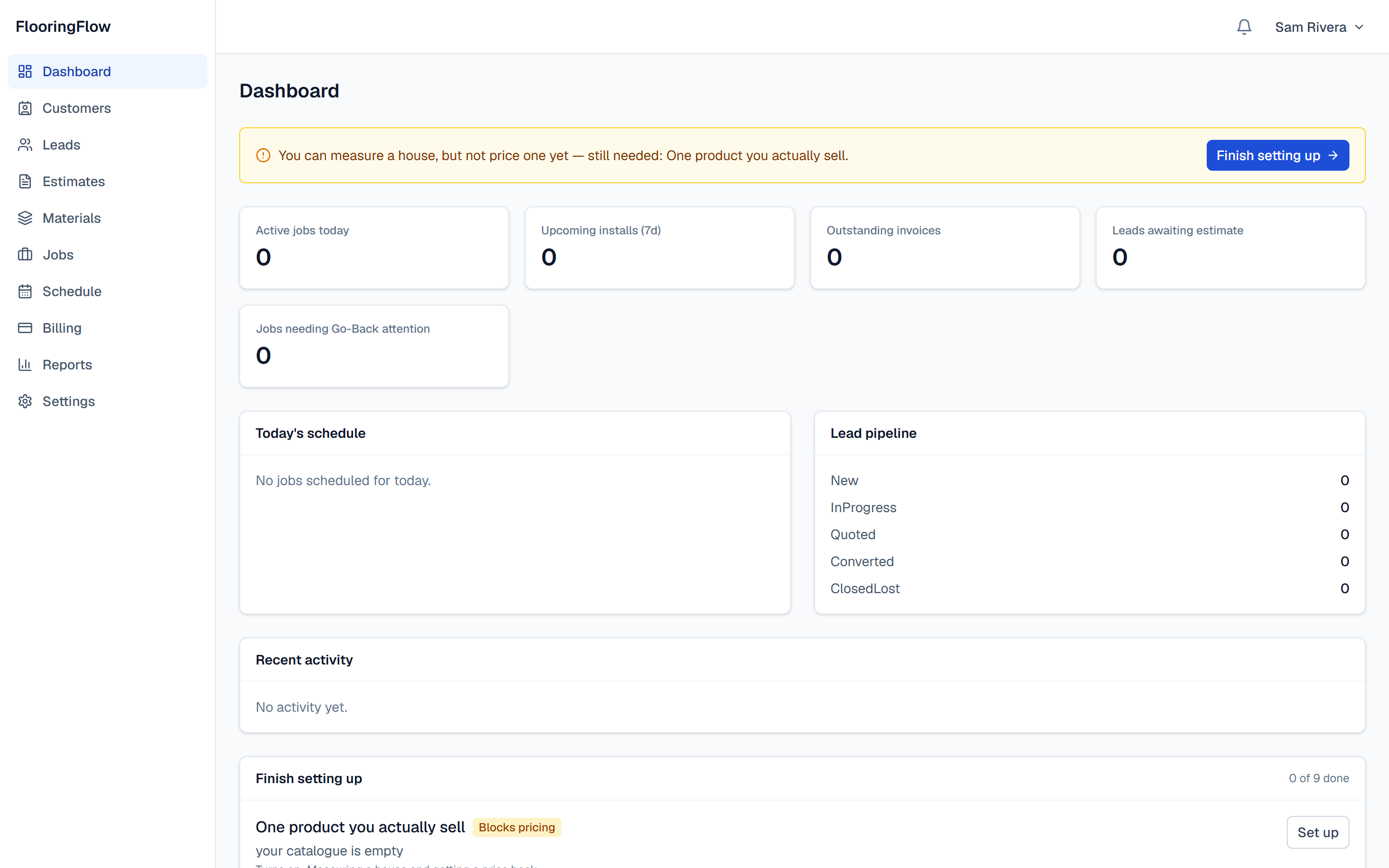
Your first day — an empty dashboard
Tap the picture to open it full size

What this screen is for

The dashboard is your morning screen. On day one it is nearly empty -- no jobs today, no leads waiting -- with one exception: a strip across the top naming whatever setup you have not finished, and what it stops you doing. Once setup is complete that strip disappears for good.

What to do

Use the menu down the left to move around: Leads, Estimates, Materials, Jobs, Schedule, Billing, Reports, Settings. The five boxes across the top are shortcuts — each one jumps to the list behind it.

What happens next

Before you can quote anything you need two things, and the app now walks you through both: one product in your catalogue with YOUR cost on it, and what you charge for labour per square foot. Without them a quote either cannot be produced at all or comes out with the labour priced at nothing. Crews and your full supplier price list can wait until you have a job to book.

4

Signing in day to day

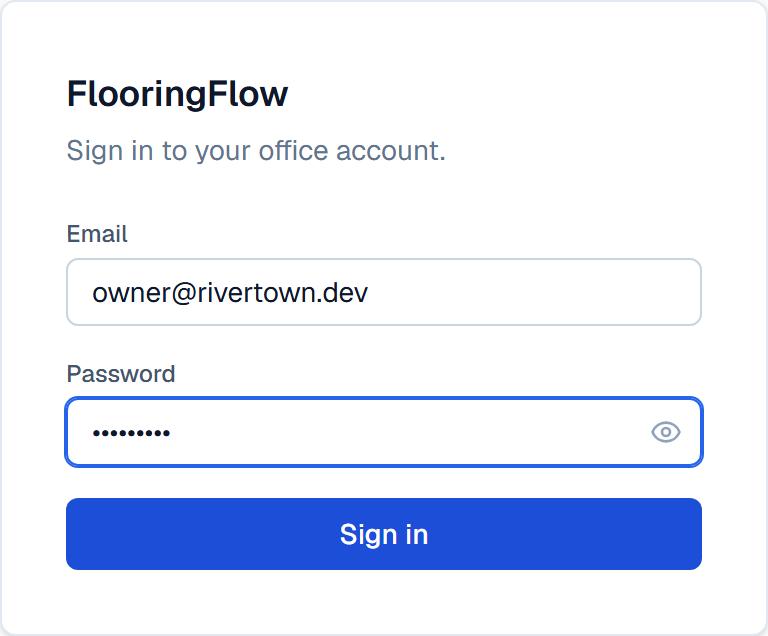
Signing in day to day
Tap the picture to open it full size

What this screen is for

Where you and your office staff sign in each morning.

What to do

Enter your email and password and press Sign in. The eye icon on the right of the password box shows what you typed, if you need to check it.

What happens next

You go straight to the dashboard. FlooringFlow keeps you signed in for a week, so on your own computer you will rarely see this screen.

5

The dashboard, once work is flowing

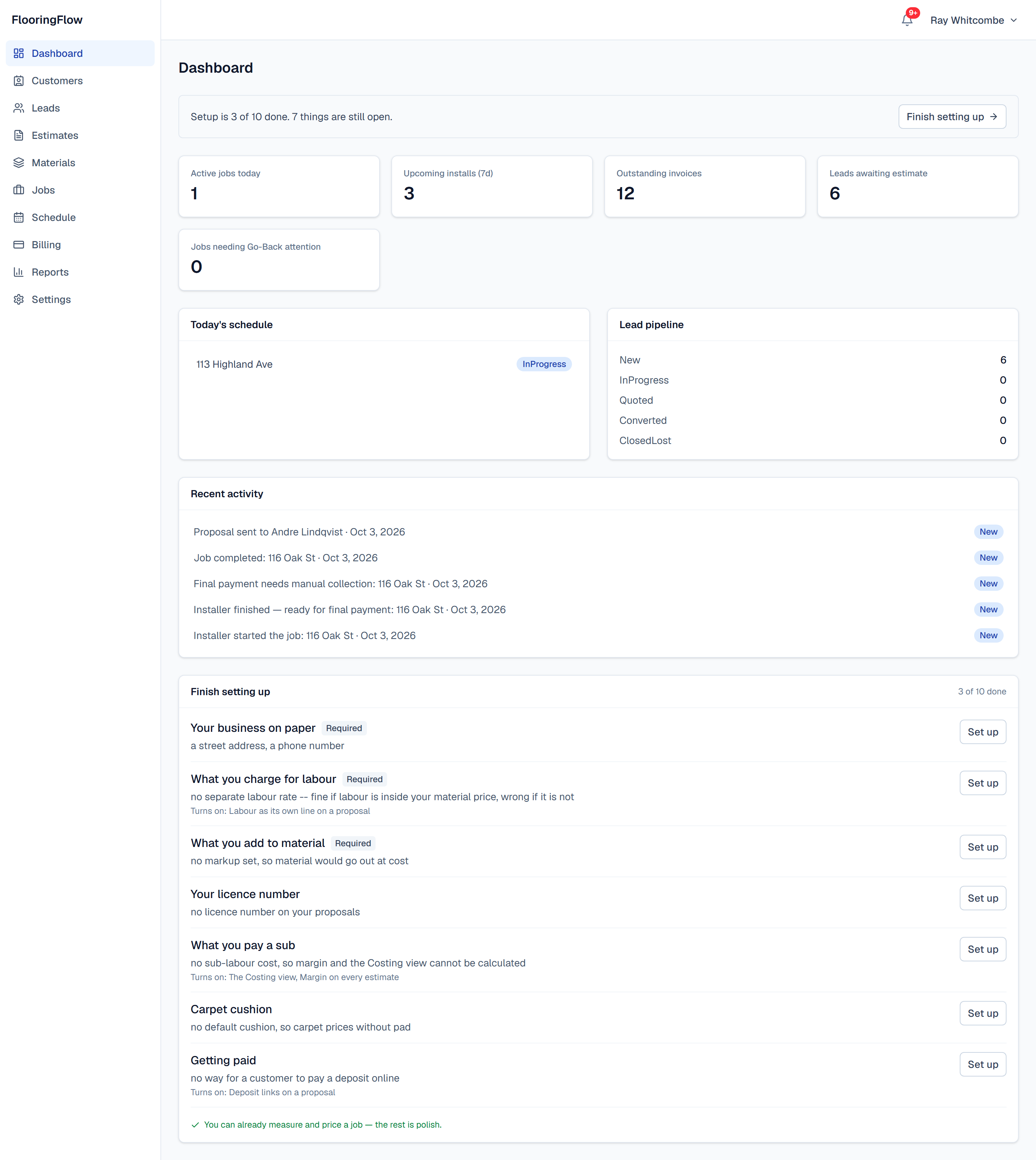
The dashboard, once work is flowing
Tap the picture to open it full size

What this screen is for

The same dashboard for a company with jobs on the board. It answers the four questions you ask every morning: who is working today, what is waiting on a quote, what money is still out, and is anything going wrong.

What to do

Check the red Go-Back box first — it only turns red when a job has to be revisited. Then work left to right along the top row.

What happens next

Clicking any box opens the full list behind it. Everything else in this guide is reachable from the menu on the left.

Taking a new enquiry

Every job in FlooringFlow starts as a lead. Adding the lead also adds the customer, so there is no separate customer screen to keep in step.

1

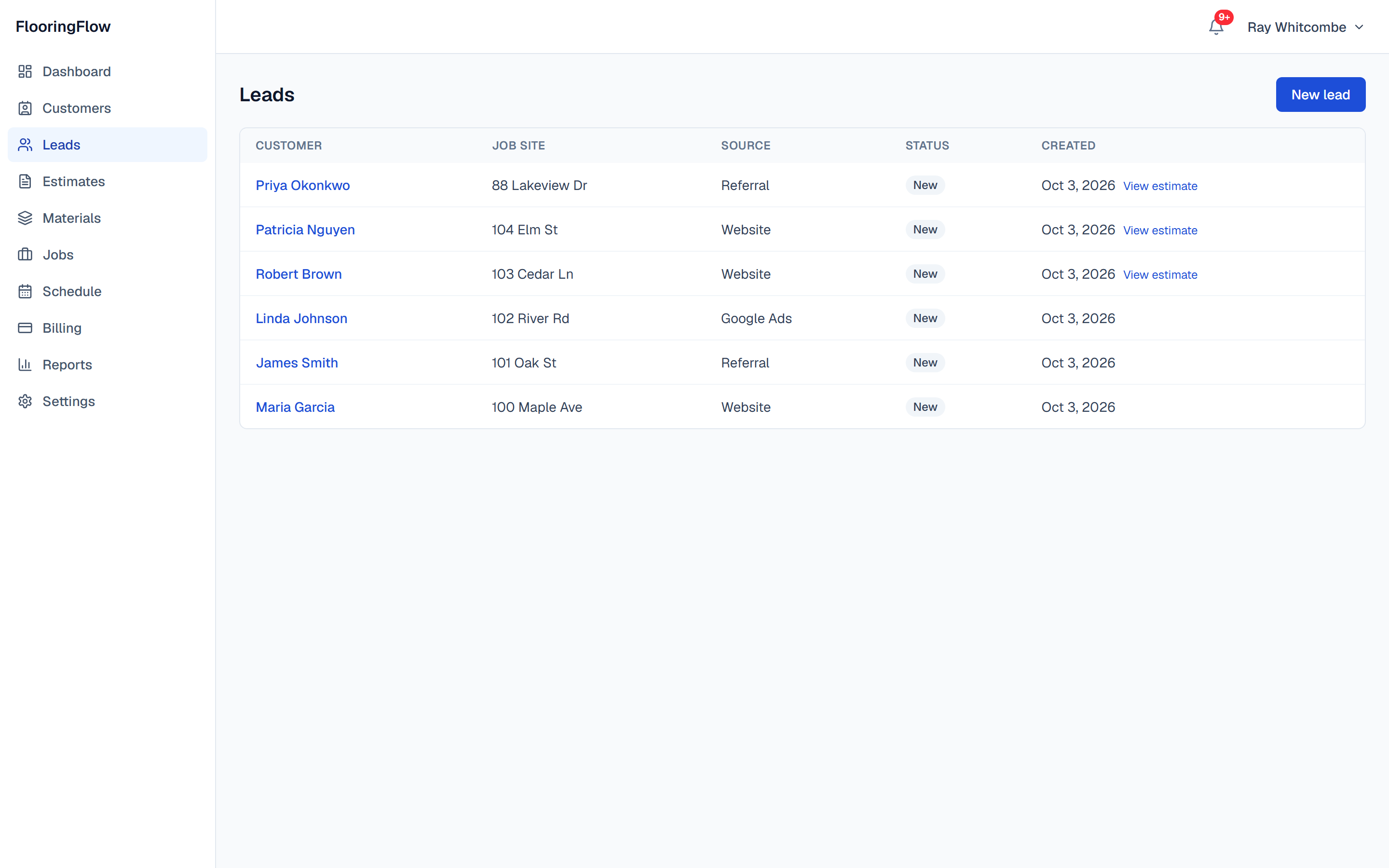
Your lead list

Your lead list
Tap the picture to open it full size

What this screen is for

Everyone who has called, emailed or filled in your website form, and where each one has got to. New means nobody has touched it yet; Quoted means a price has gone out; Converted means it became a job.

What to do

Press New lead whenever the phone rings. Click any name to open that enquiry.

What happens next

The New lead box opens with a blank customer ready to fill in.

2

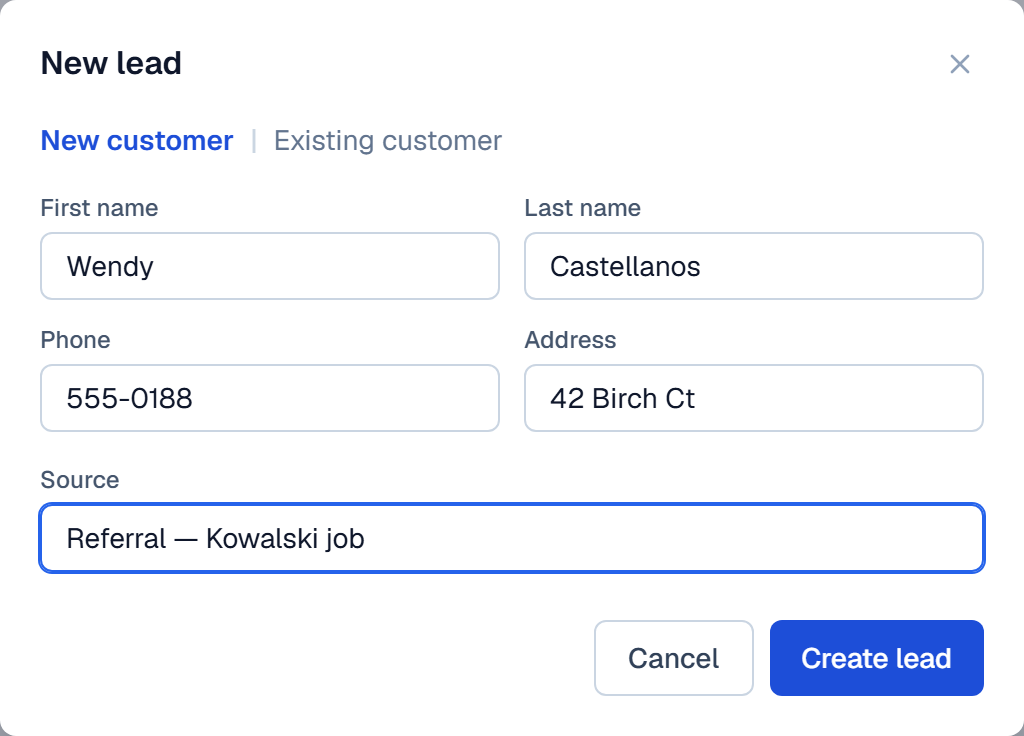
Adding the customer and the enquiry together

Adding the customer and the enquiry together
Tap the picture to open it full size

What this screen is for

This one box creates the customer record and the enquiry at the same time. If they have called before, switch to Existing customer and pick them from the list instead of typing them twice.

What to do

First and last name are the only things you must fill in — you can add the phone and address later. Source is worth the five seconds: it is what tells you months from now whether referrals or your website are actually paying.

What happens next

Press Create lead and you go straight to that customer's enquiry page.

3

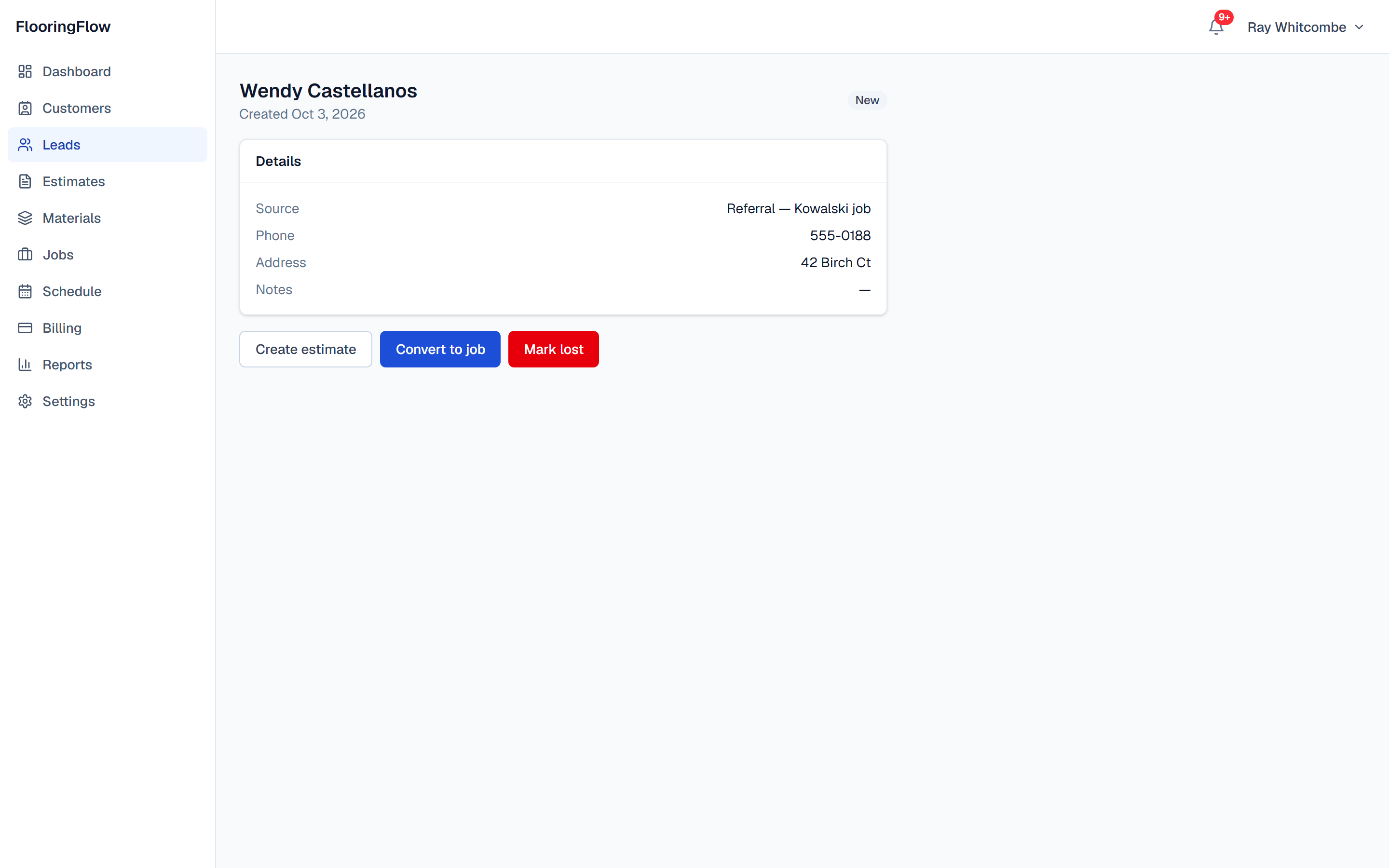
The enquiry page

The enquiry page
Tap the picture to open it full size

What this screen is for

Everything you know about this enquiry on one screen, and the three things you can do with it.

What to do

Create estimate is the usual next step — it opens a blank estimate already pointed at this customer. Convert to job skips the pricing for work you have already agreed. Mark lost closes it off without deleting anything.

What happens next

Once a price goes out, the badge at the top moves to Quoted on its own. You never have to set the status by hand.

Pricing the job

An estimate is your price on paper. Build it line by line, or let the takeoff build the lines for you from your room measurements — the next section covers that.

1

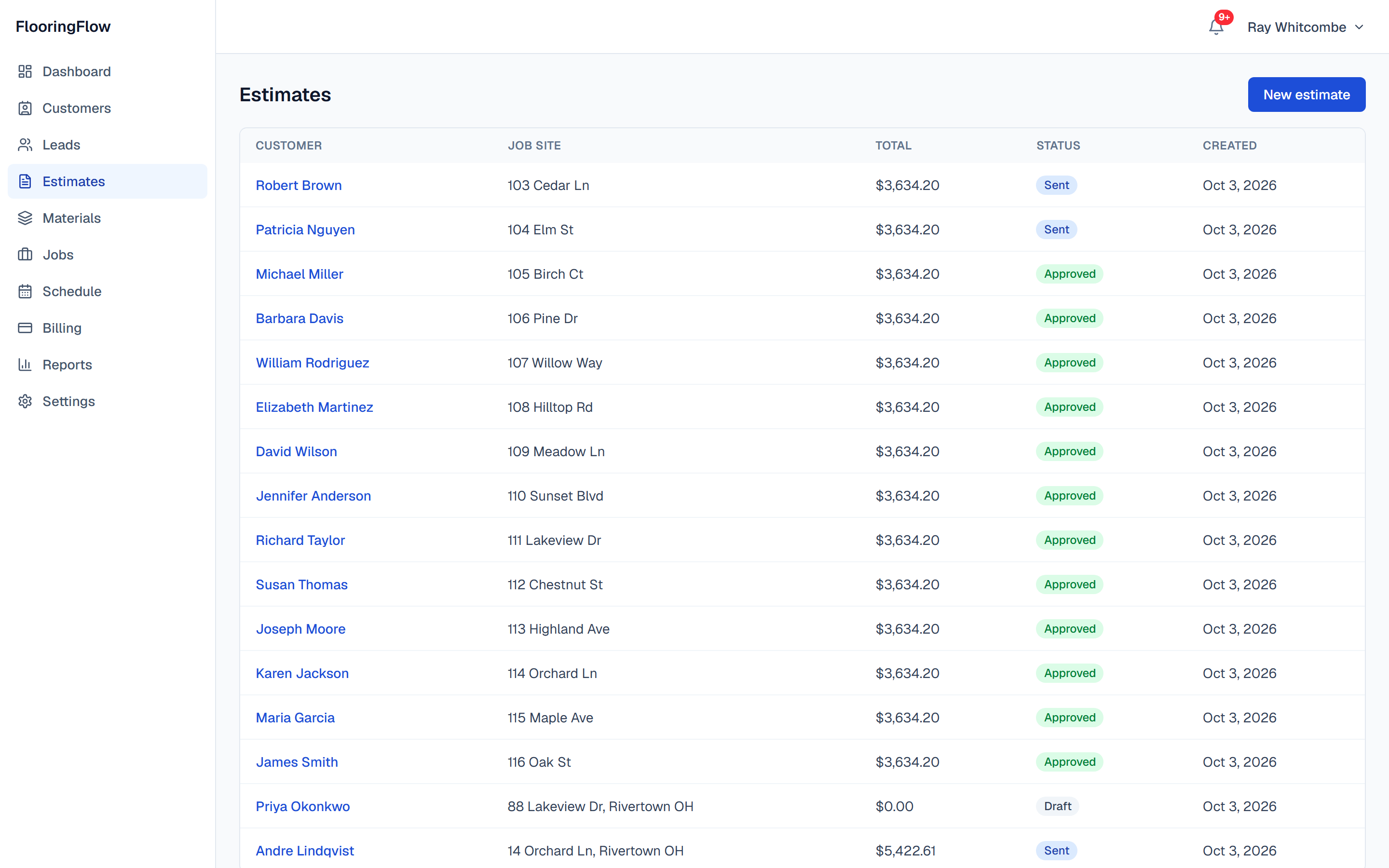
Every price you have out

Every price you have out
Tap the picture to open it full size

What this screen is for

Draft means you are still working on it and the customer cannot see it. Sent means the price has gone out. Approved means they accepted and it has already turned into a job.

What to do

Press New estimate, or click any row to reopen one.

What happens next

Nothing on a Draft is visible to the customer until you send it.

2

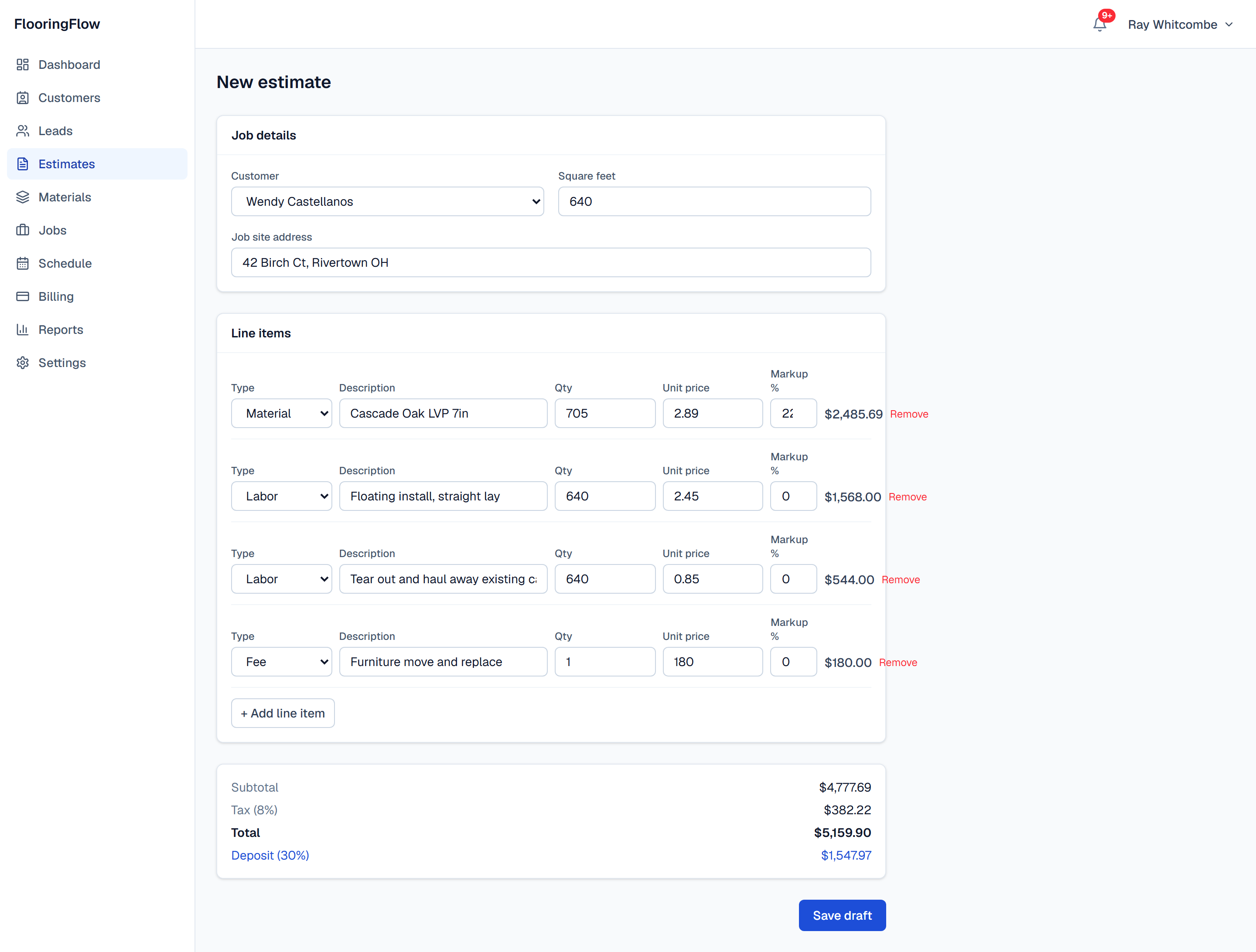
Building the price

Building the price
Tap the picture to open it full size

What this screen is for

One line per thing you are charging for. Material, Labor or Fee — the type is only there to keep the paperwork readable, it does not change the arithmetic.

What to do

Type your cost in Unit price and put your margin in Markup %, so the customer sees one number and you keep your pricing to yourself. Quantity times unit price plus markup is the line total.

What happens next

Tax and the deposit are worked out for you at the bottom. Press Save draft — nothing is sent to the customer yet.

3

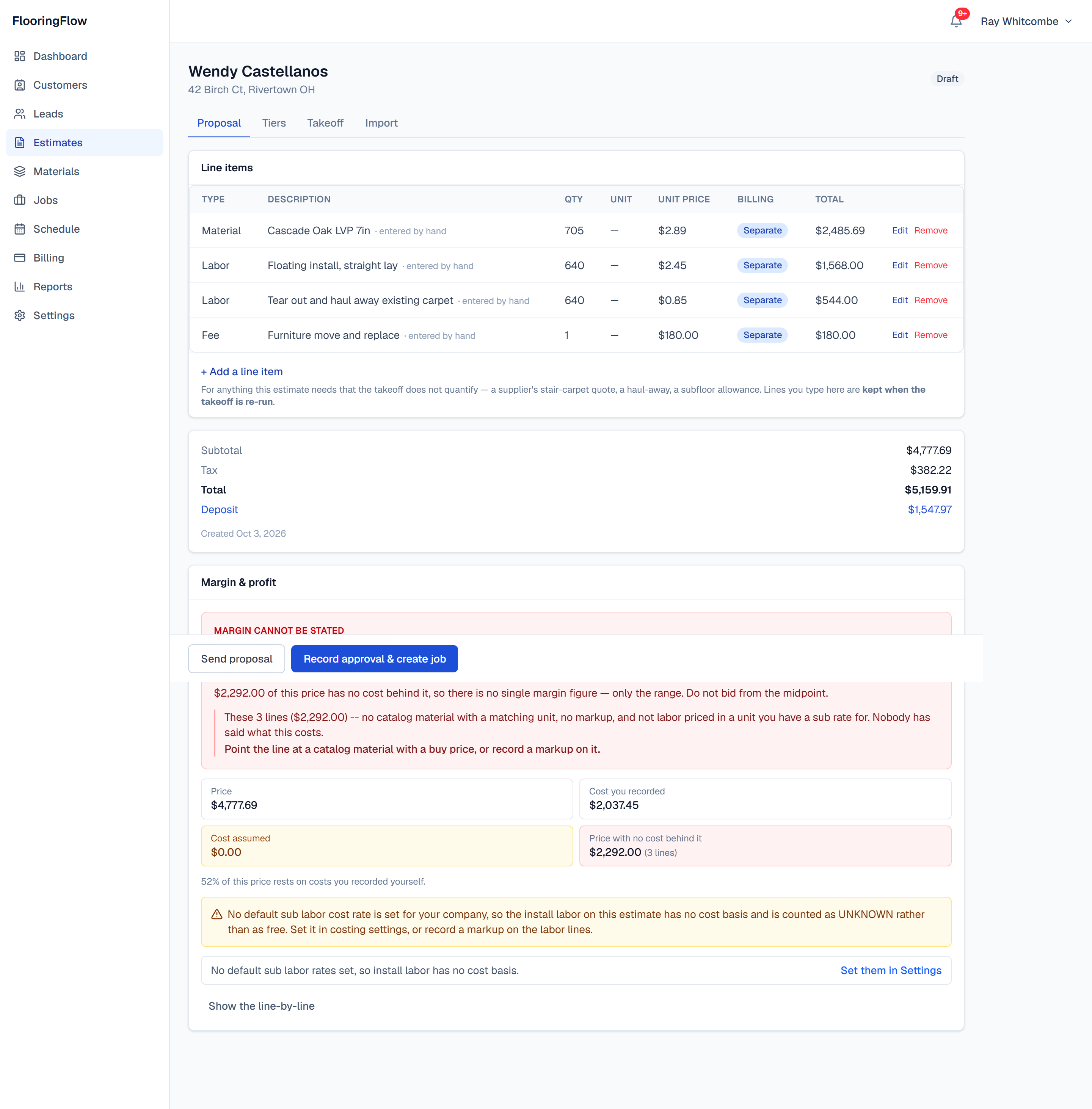
The finished estimate

The finished estimate
Tap the picture to open it full size

What this screen is for

Your price, as it stands. The two tabs at the top are the two ways to work: Proposal is the line-by-line price, Takeoff is the room-by-room measure that can write those lines for you.

What to do

Check the Billing column. Every line here is Separate — charged on its own. The other three settings are Bundled, shown but already in another price; Allowance, money set aside; and Excluded, something you are deliberately not doing. Press Send proposal when you are happy.

What happens next

Sending marks it Sent and puts it in front of the customer. When they accept, Approve & create job turns it into a live job with its deposit invoice already raised.

Room-by-room takeoff

Measure the house once, room by room, and let FlooringFlow work out what to order. Hard surface comes back as cartons with the waste itemised. Carpet comes back as a cut plan on the roll, with the seams drawn. Stairs are priced per step, never per square foot — the way you actually sell them.

1

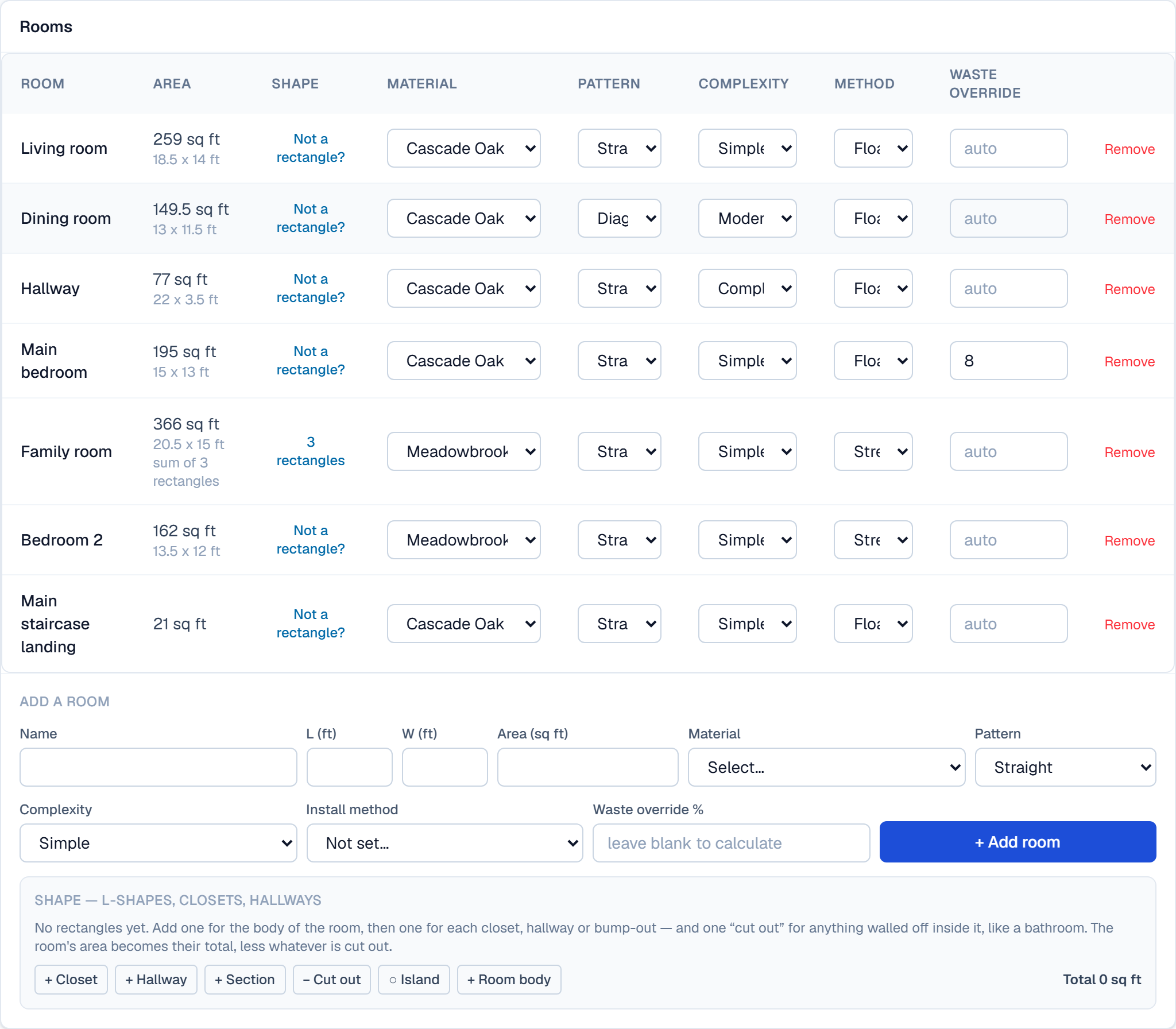
The rooms you are flooring

The rooms you are flooring
Tap the picture to open it full size

What this screen is for

One line per space. Put in the length and width and the area fills itself in, or type the area straight in if the room is an odd shape and you worked it out on site. Stair landings are in this list too — a landing is floor somebody walks on, not part of the staircase.

What to do

Pattern and Complexity are what drive the waste figure. A diagonal lay in a chopped-up hallway wastes far more than a straight lay in a square bedroom, and this is where you tell it so. Leave Waste override blank unless you have a reason — blank means calculated.

What happens next

Every change saves as you make it. Nothing needs pressing to keep your measurements.

2

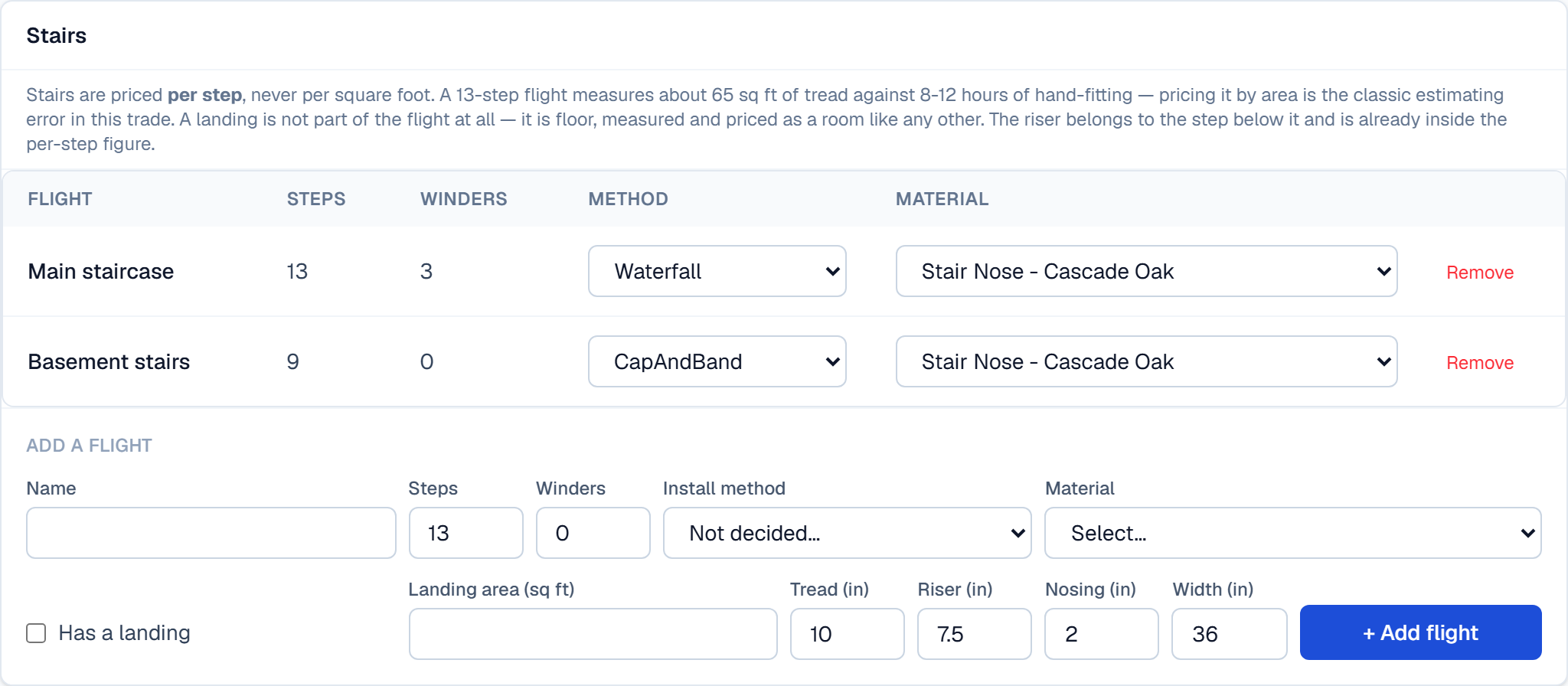
Stairs, counted as steps

Stairs, counted as steps
Tap the picture to open it full size

What this screen is for

Stairs are the single easiest thing to lose money on. FlooringFlow prices them per step — tread, riser and nosing together — instead of rolling them into a square-foot number that never covers them. A landing is not part of the flight: it is floor, and it is measured and priced as a room like any other.

What to do

Count the steps and count the winders — the pie-shaped ones on a turn — separately, because winders take far more material and far more time. If the flight runs up to a landing, tick Has a landing and give its square feet: it is added to the Rooms list above as its own space, named after the flight, and it is laid out and priced there with everything else. Add nothing for the risers — a riser belongs to the step below it and is already in the per-step figure.

What happens next

Tread, riser and nosing are pre-filled with the usual sizes. Change them only if you have measured something different.

3

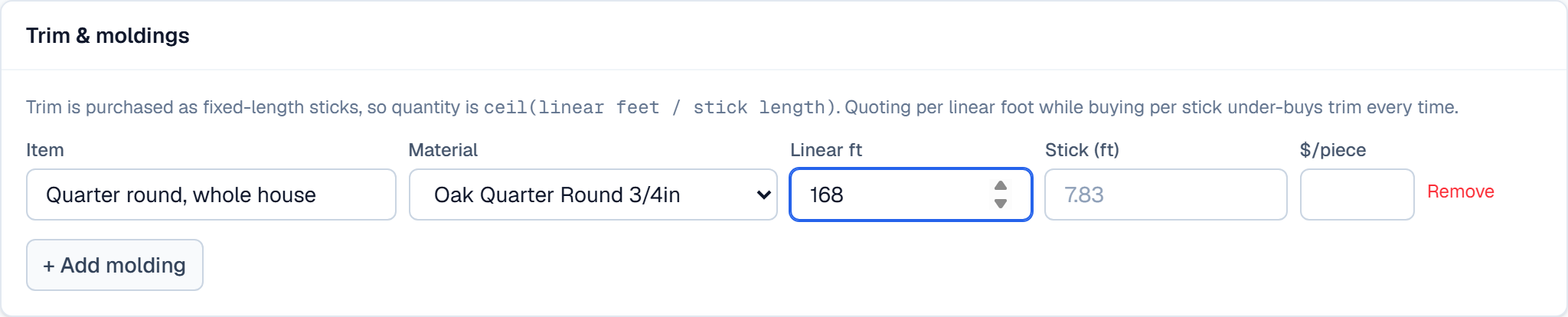
Trim, bought by the stick

Trim, bought by the stick
Tap the picture to open it full size

What this screen is for

Quarter round and shoe come in fixed-length sticks. Quoting per linear foot while buying per stick under-buys the trim on every single job — this card does the division for you.

What to do

Name the item, pick it from your catalog so the stick length and price come across, and put in the total linear feet you measured.

What happens next

The takeoff turns that into a number of whole sticks, and prices them at what you pay per stick.

4

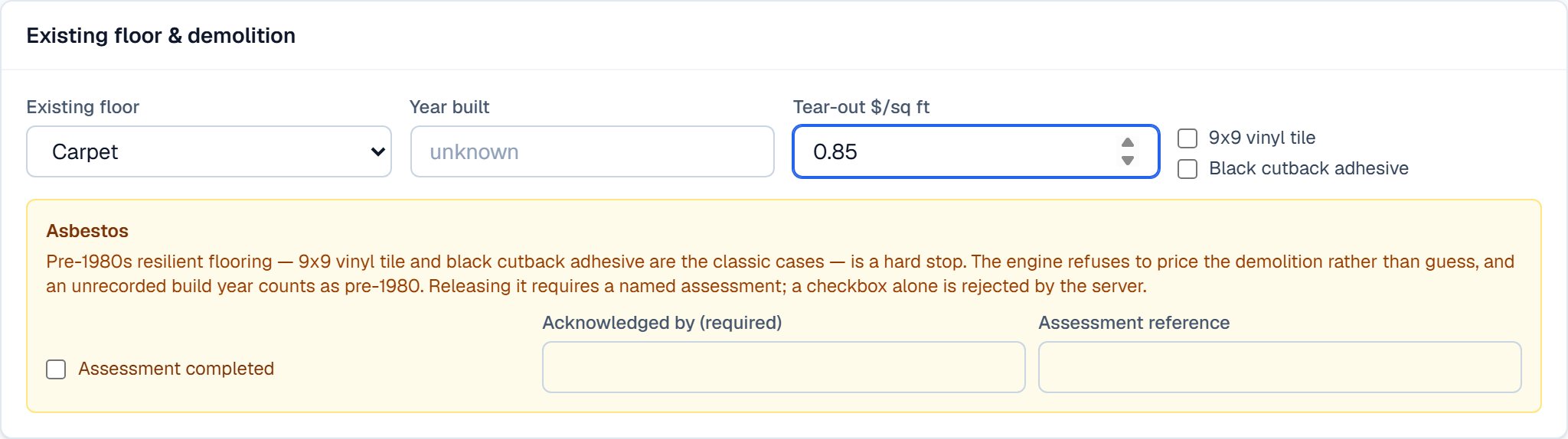
What is coming out first

What is coming out first
Tap the picture to open it full size

What this screen is for

Tear-out, and the asbestos question you must not skip. If the house has 9x9 vinyl tile or black cutback adhesive and was built before 1980, that floor may contain asbestos.

What to do

Pick the existing floor and the year built. If the amber warning appears, stop and get an assessment. FlooringFlow will not let you past it without naming who cleared the job.

What happens next

The tear-out price becomes its own line, so the customer can see what the demolition costs.

5

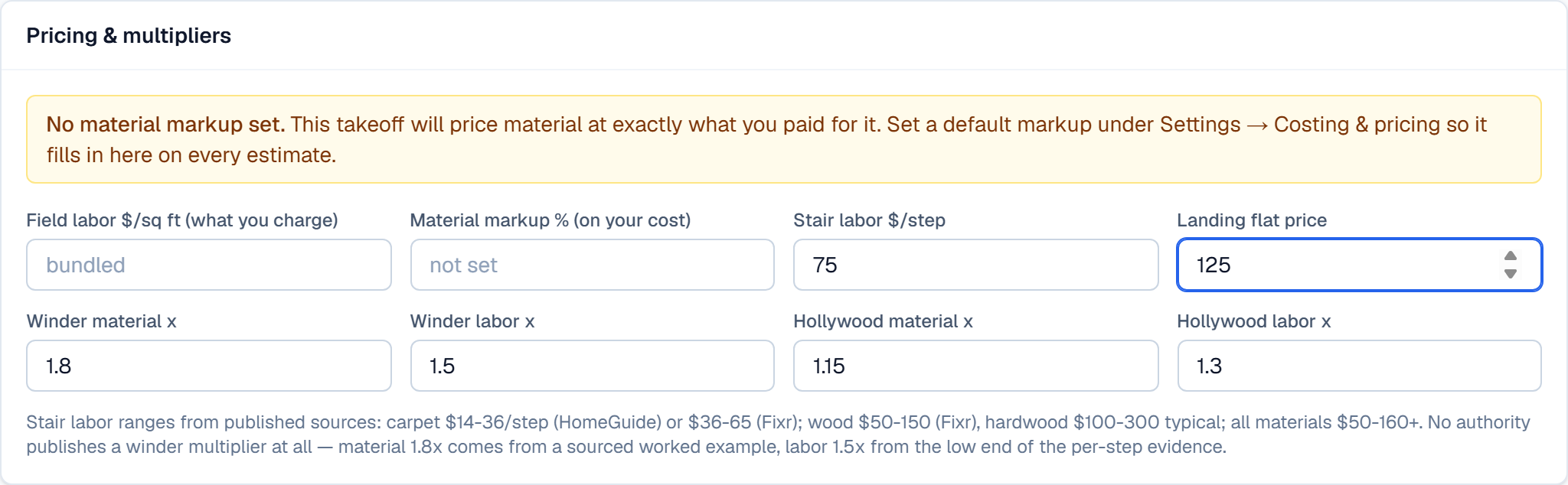
Your rates

Your rates
Tap the picture to open it full size

What this screen is for

Your labor rates and the multipliers that handle the hard bits. Set these once and they apply to every takeoff.

What to do

Winder multipliers are the important ones. A winder takes roughly 1.8 times the material and 1.5 times the time of a straight step — if your crew is slower or faster, change it here. Landing flat price is what you charge to lay a landing, whole: a landing is a few square feet of hand-fitting, so it is priced like a stair rather than at your square-foot floor rate. Leave it empty and the takeoff quotes the landing's material and tells you the labor is missing.

What happens next

Leave field labor blank if you bundle it into your material price instead of billing it separately.

6

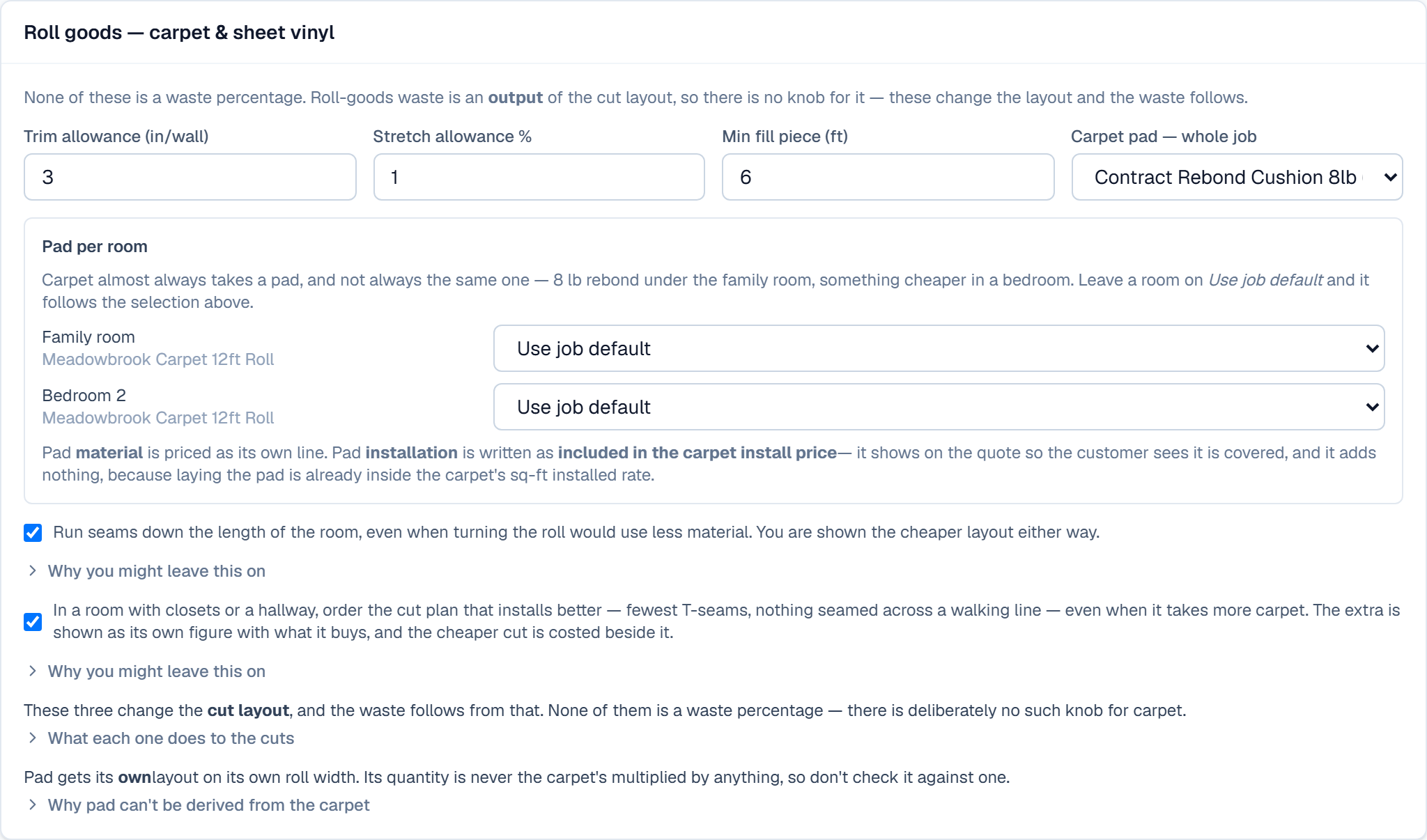
Carpet: the roll, and what goes under it

Carpet: the roll, and what goes under it
Tap the picture to open it full size

What this screen is for

Carpet is not bought by the box, so none of the carton settings apply to it. What matters is the roll: how much you trim off each cut, how much stretch you allow, and which way the nap runs. Set them once for the job.

What to do

Pick your cushion here and every carpeted room gets it. It is a second material with its own roll width, not a percentage added to the carpet — so it is laid out separately and priced separately. Override it per room underneath if one room takes a different pad.

What happens next

Press “Price it” and the carpet rooms come back as a cut plan, not a carton count.

7

What to order

What to order
Tap the picture to open it full size

What this screen is for

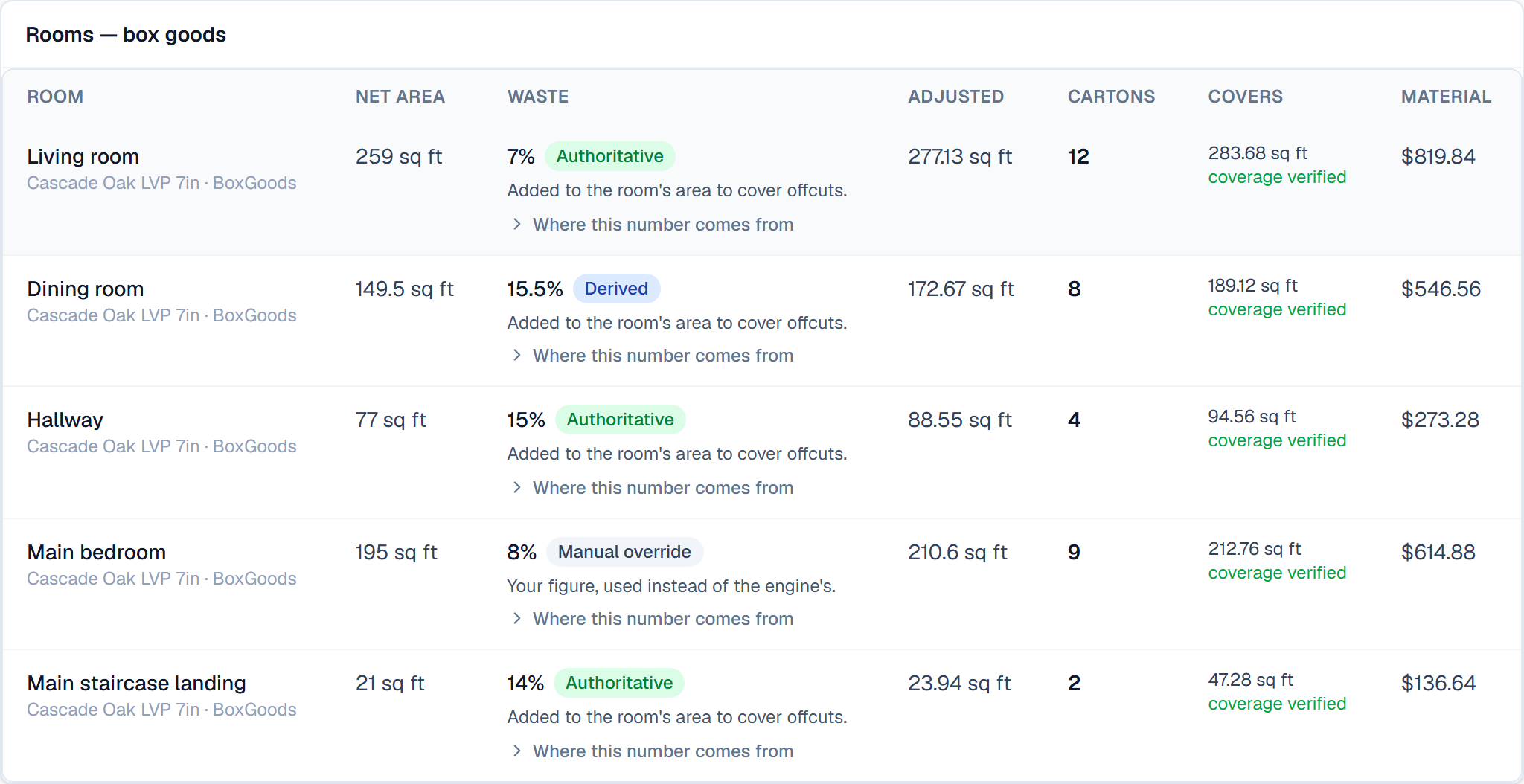
The answer: how many whole cartons each room needs. You cannot buy two-thirds of a box, so this rounds up and then tells you what the boxes actually cover.

What to do

Look down the coverage column. Green means the cartons cover the room with the waste allowed. A red SHORTFALL means the rounding has left you short — add a carton before you order.

What happens next

Scroll on for the stairs, the trim and the totals.

8

Where the waste figure came from

Where the waste figure came from
Tap the picture to open it full size

What this screen is for

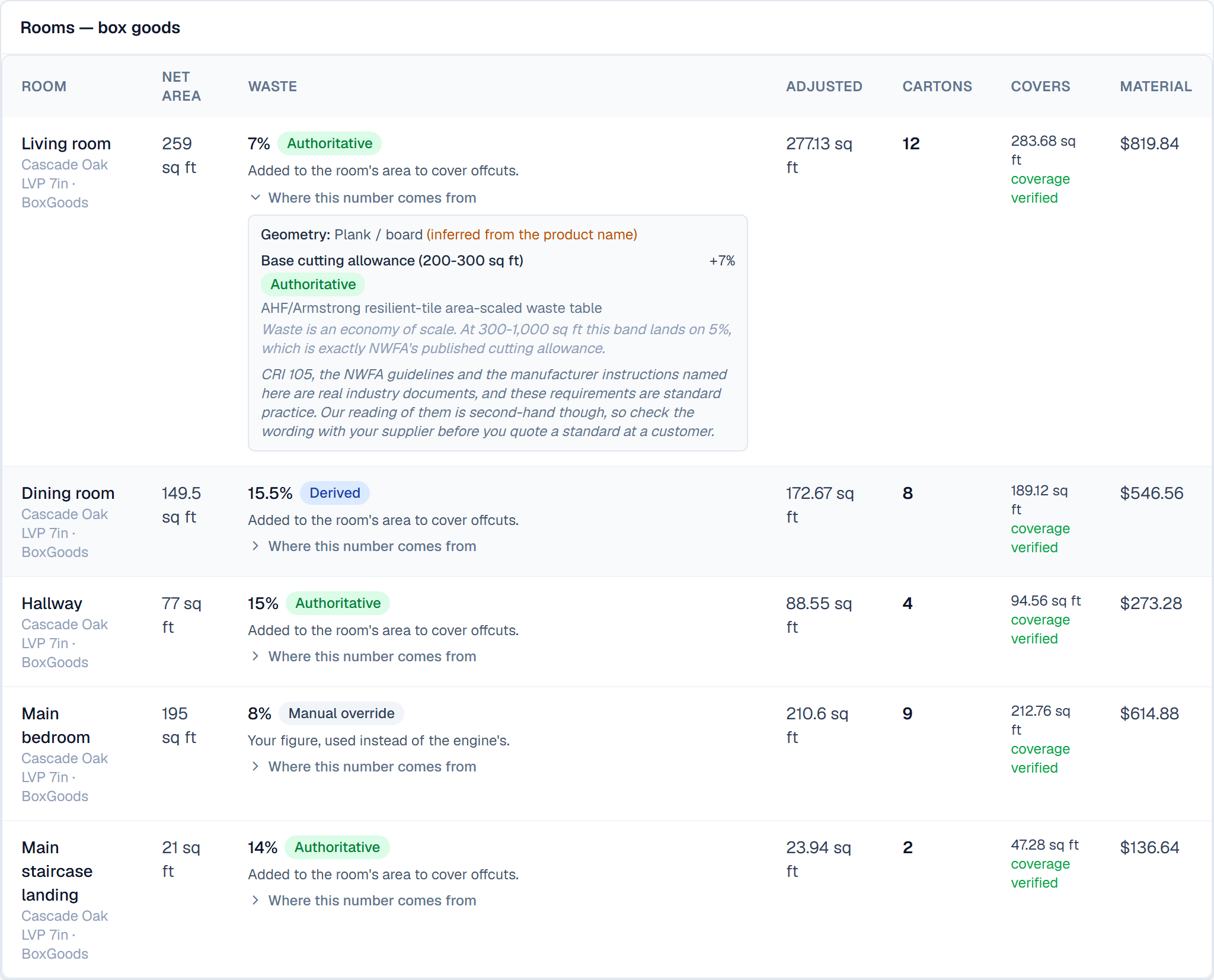
Every waste percentage can be opened up. This matters because some figures are published by the manufacturer or the association, and some are just what the trade does.

What to do

Open “Where this number comes from” to see the breakdown. A green tag means somebody published that number. Where you see an amber Field consensus tag, that figure is trade habit with no source behind it — think twice about that one before you bid.

What happens next

If you disagree, put your own number in the room's Waste override and the tag changes to Manual override so everyone can see it was your call.

9

Carpet: what to buy, in linear feet

Carpet: what to buy, in linear feet
Tap the picture to open it full size

What this screen is for

You buy linear feet of a full roll width. Thirty feet off a 12-ft roll bills 360 square feet whether the room is 12 feet wide or 11 — which is why a waste percentage cannot be typed in here. The percentage you see is the gap between what you buy and what covers the floor.

What to do

Check the Buy figure against your supplier's minimum cut, and read the seam-rule badges. A red one is a CRI 105 rule this layout breaks; a green one is a rule it keeps.

What happens next

The drawing underneath is where those seams actually land.

10

The cut plan, drawn

The cut plan, drawn
Tap the picture to open it full size

What this screen is for

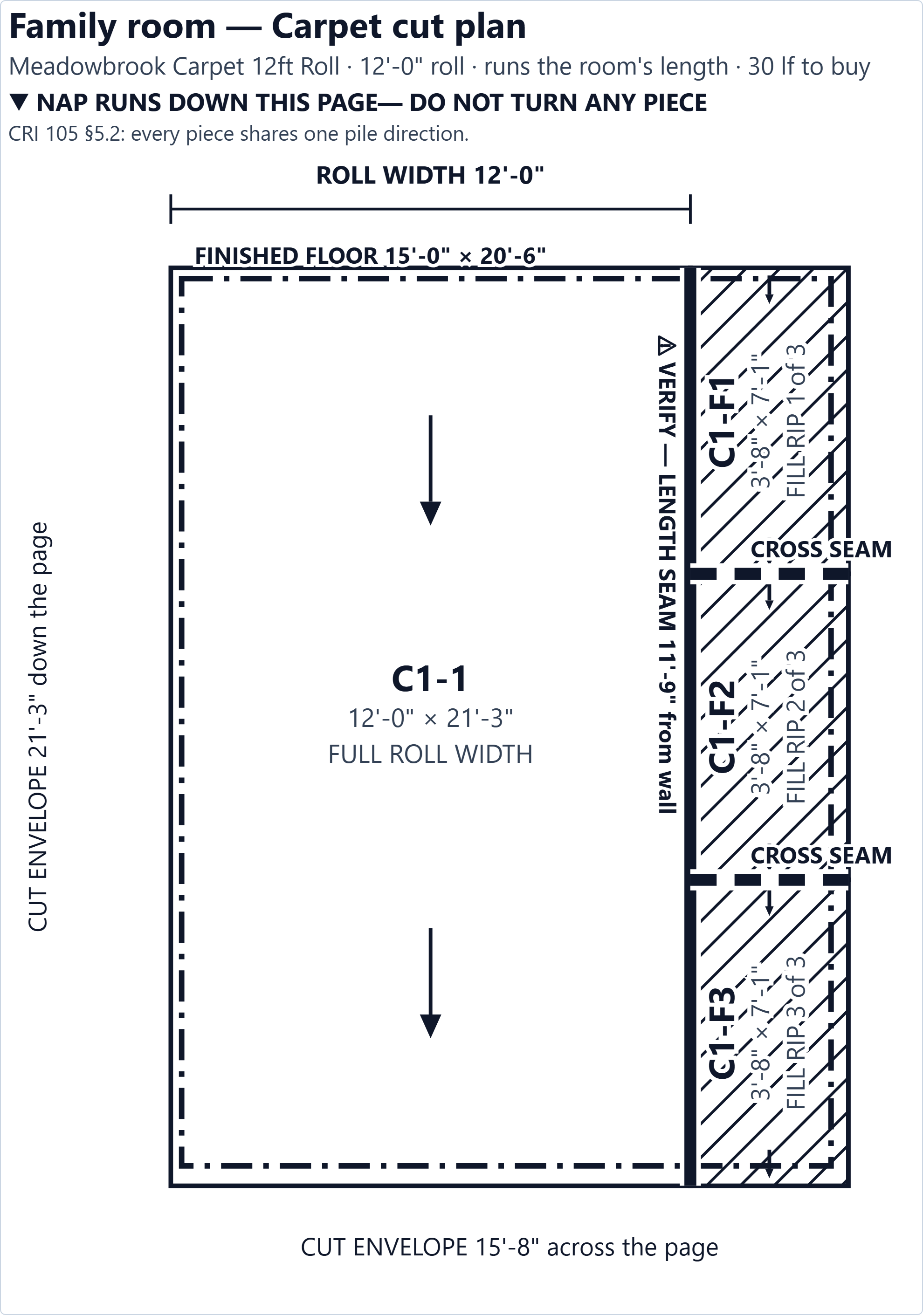
Every cut, at scale, on the roll it comes off — with the seams marked and the nap direction on every piece so nothing on it can be read as a rectangle you could turn to make it fit.

What to do

Print this and hand it to whoever is cutting. It carries the room name, the material and the roll width, so it stands on its own in the van.

What happens next

The cut list below it is the same plan as numbers, if you would rather work off a list.

11

Two ways to cut it, and why this one

Two ways to cut it, and why this one
Tap the picture to open it full size

What this screen is for

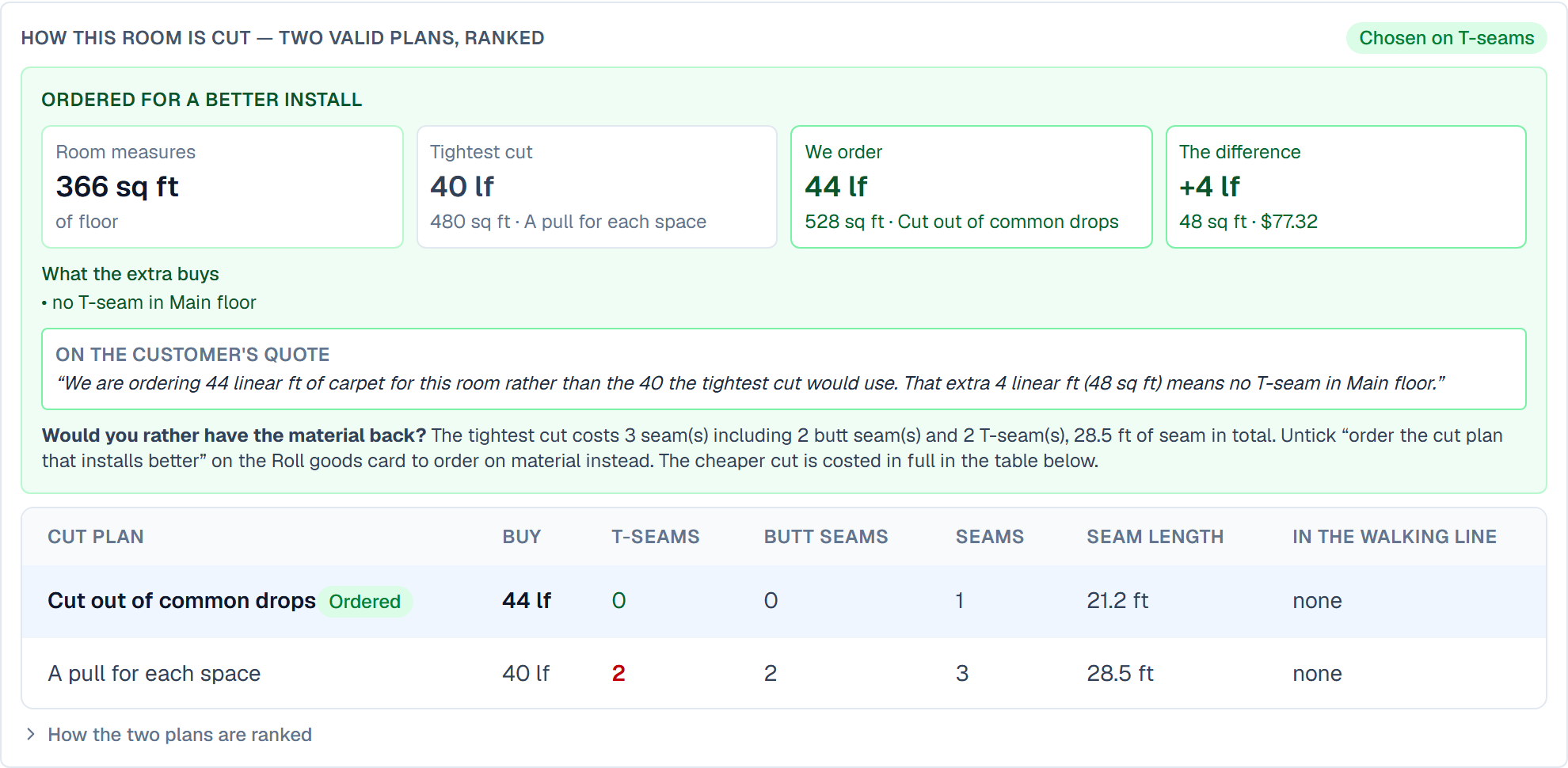
There is more than one valid way to cut a room, and they are not equally good installs. FlooringFlow works both out and orders the one that installs best — fewest T-seams first, then seams out of the traffic path — not the one that uses least carpet.

What to do

Read the row that is not marked as ordered. That is what the cheaper cut would have cost you in seams. If the better plan buys more carpet, the extra is stated in feet and dollars so you can sell it as the upgrade it is.

What happens next

The whole comparison is yours to overrule — turn off prefer seam quality and it orders on material instead, and says on screen that it did.

12

The bottom line

The bottom line
Tap the picture to open it full size

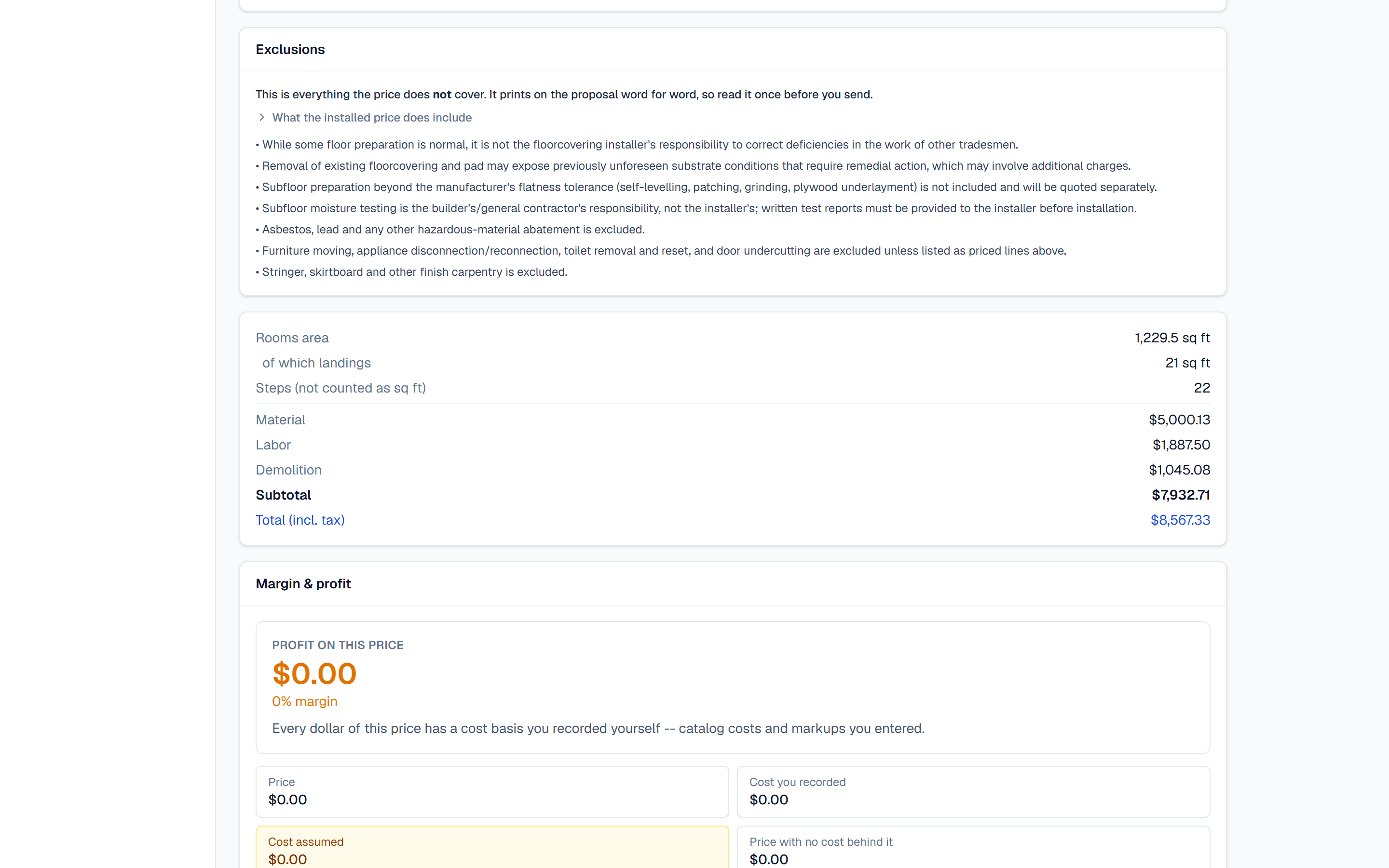
What this screen is for

Material, labor and demolition added up. Stair steps are kept out of the square-foot figure so they cannot be double-counted, while landings are in it — they are rooms — and the line underneath says how much of the area they account for.

What to do

Check the Review before bidding warnings. They are things worth a phone call before you commit.

What happens next

Press “Put these on the estimate” and the takeoff writes the line items for you. It replaces the lines a previous takeoff wrote and keeps every line you typed by hand.

13

The takeoff, written up as a price

The takeoff, written up as a price
Tap the picture to open it full size

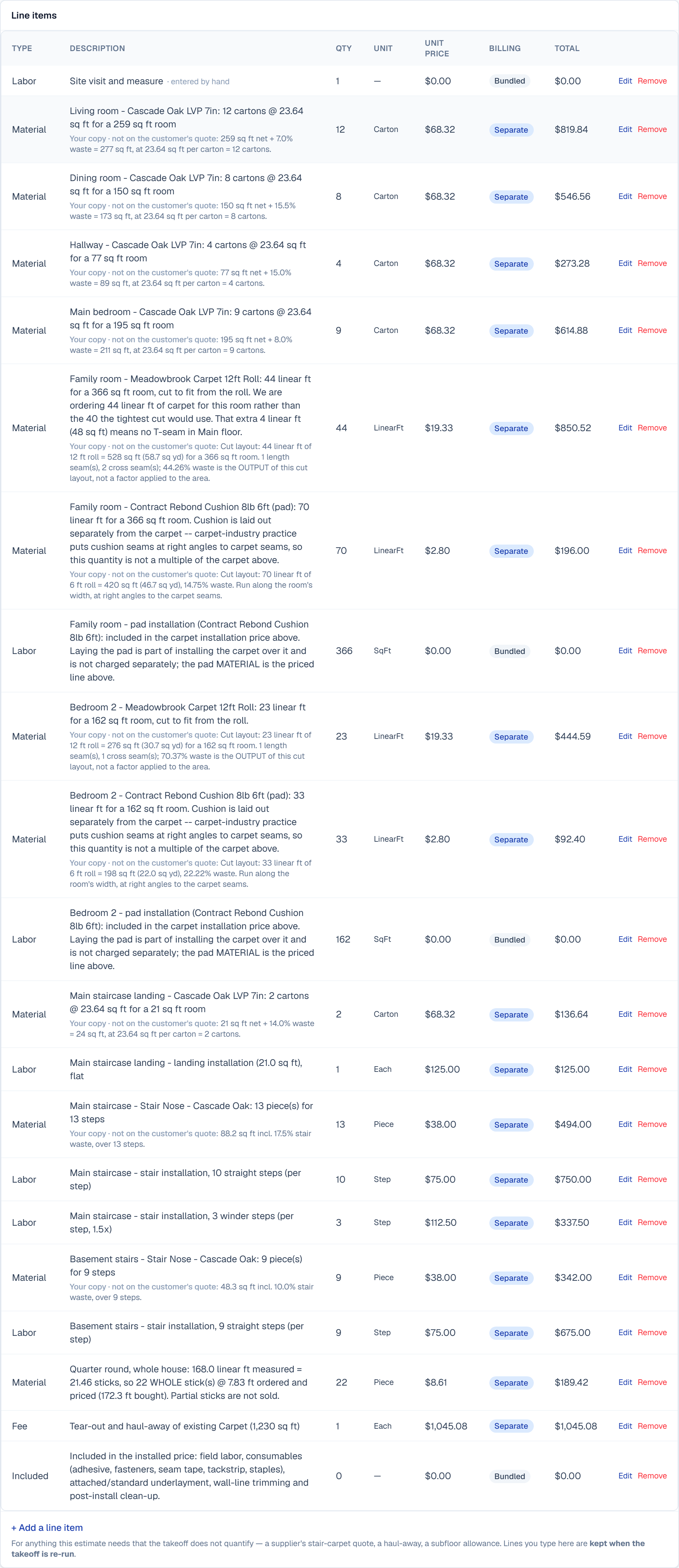
What this screen is for

The same numbers, now as the line items the customer will see, each one showing its working. Material by the carton, stairs by the step, trim by the stick, tear-out by the square foot.

What to do

Edit anything you want to word differently before you send it. The square-foot figure at the top of the estimate has been updated to match the rooms you measured.

What happens next

From here it is the same as any estimate: send it, and it becomes a proposal the customer can sign.

Your material catalog

Your price list, in FlooringFlow. Load it once and every takeoff knows what a carton covers and what it costs you. Suppliers send CSV, so FlooringFlow imports CSV.

1

The catalog

The catalog
Tap the picture to open it full size

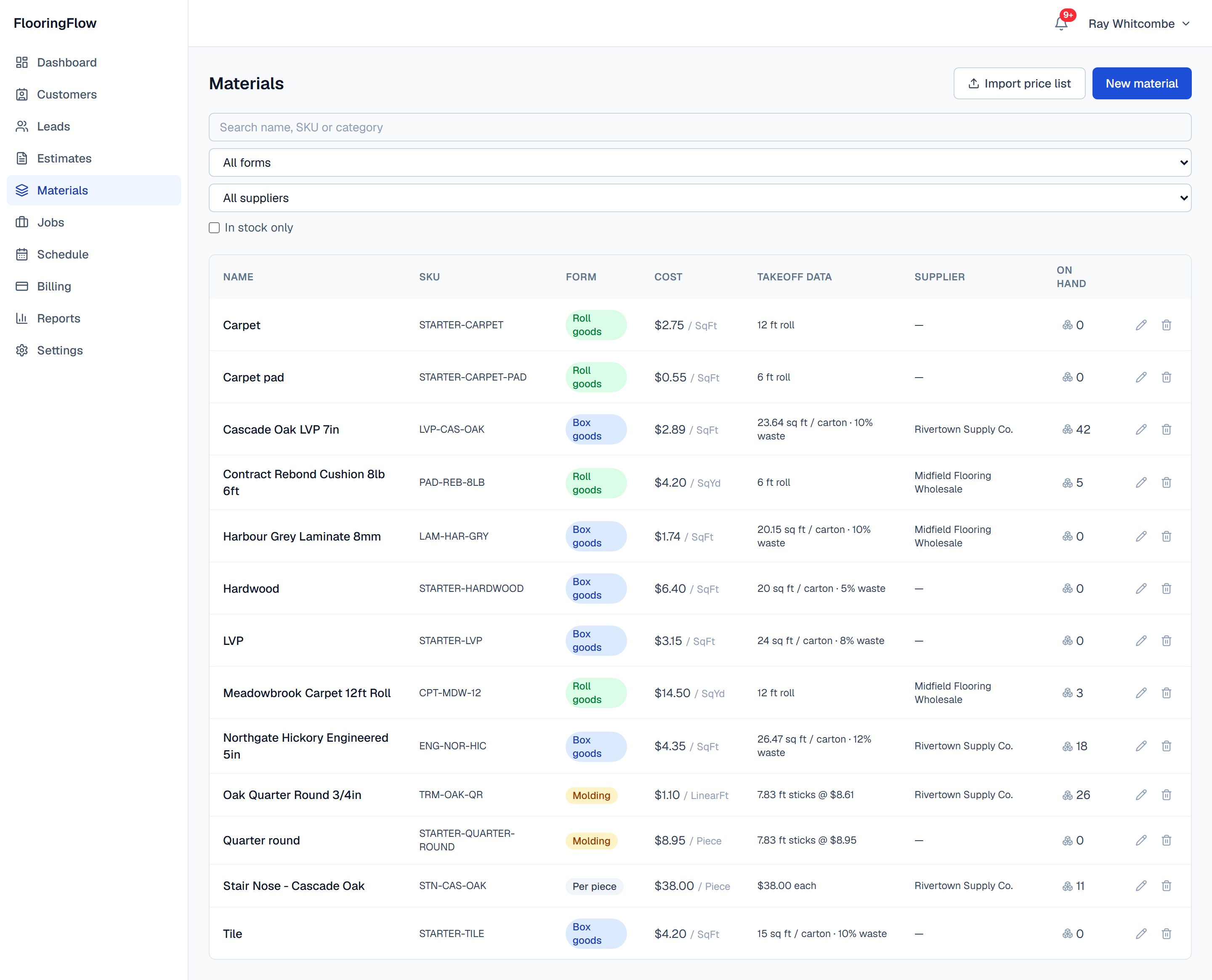
What this screen is for

Everything you sell, what it costs you, and what you have on the shelf. The Takeoff data column tells you at a glance whether a product has enough information on it to be used in a takeoff — a plank without its carton coverage cannot be turned into a carton count.

What to do

Search by name, SKU or category, or narrow by form and supplier. Click the number under On hand to adjust stock after a delivery or a job.

What happens next

Press New material to add one by hand, or Import price list to load a whole supplier file.

2

Adding one product

Adding one product
Tap the picture to open it full size

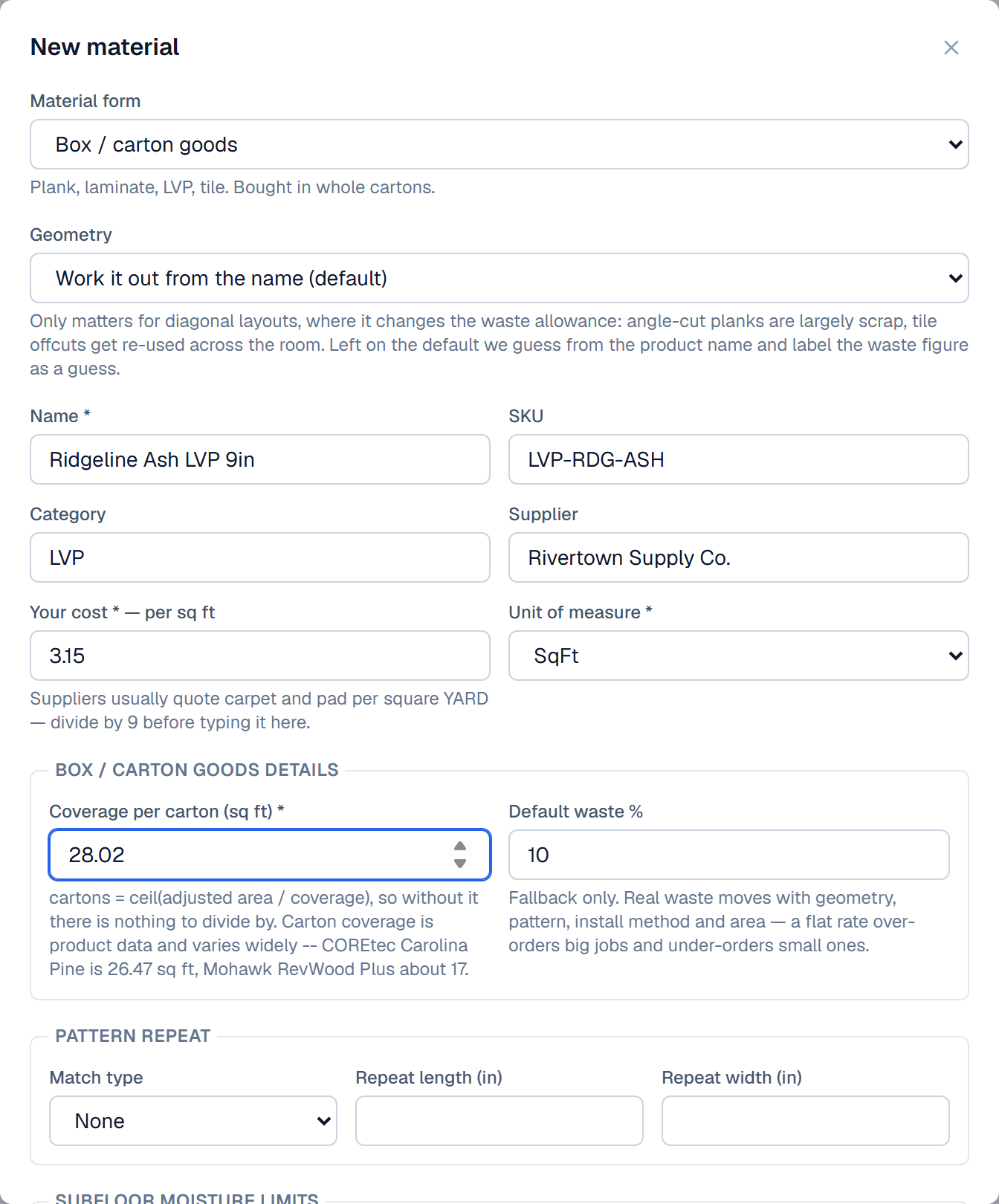
What this screen is for

The form changes shape depending on what you are selling. Box goods ask for the coverage per carton. Roll goods ask for the roll width. Trim asks for the stick length and the price per stick. You are never asked for a number that makes no sense for that product.

What to do

Pick the form first, then fill in what it asks for. Coverage per carton is the one number the takeoff cannot work without, and it is printed on the end of every box.

What happens next

Pattern repeat and subfloor moisture limits are optional, but if the manufacturer publishes a moisture limit it is worth recording — it is the number that voids a warranty.

3

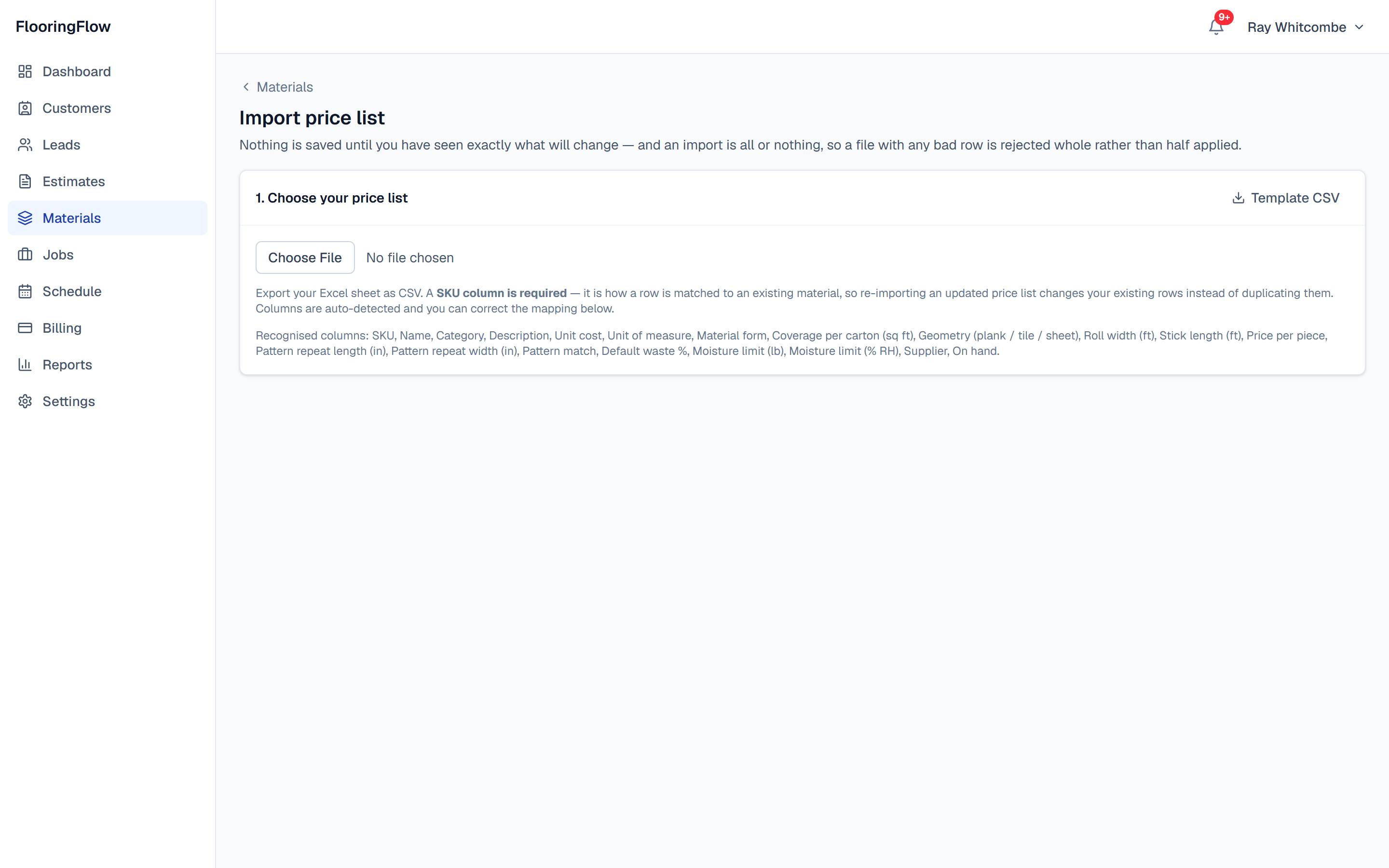
Importing a supplier price list

Importing a supplier price list
Tap the picture to open it full size

What this screen is for

Suppliers email price lists as spreadsheets. Save yours as CSV and drop it in here instead of retyping a few hundred products.

What to do

Press Template CSV if you would rather start from a file that is already in the right shape. Otherwise just choose your supplier's file — the only column it truly must have is a product code.

What happens next

The moment you choose a file, FlooringFlow reads it and shows you what it found. Nothing is saved yet.

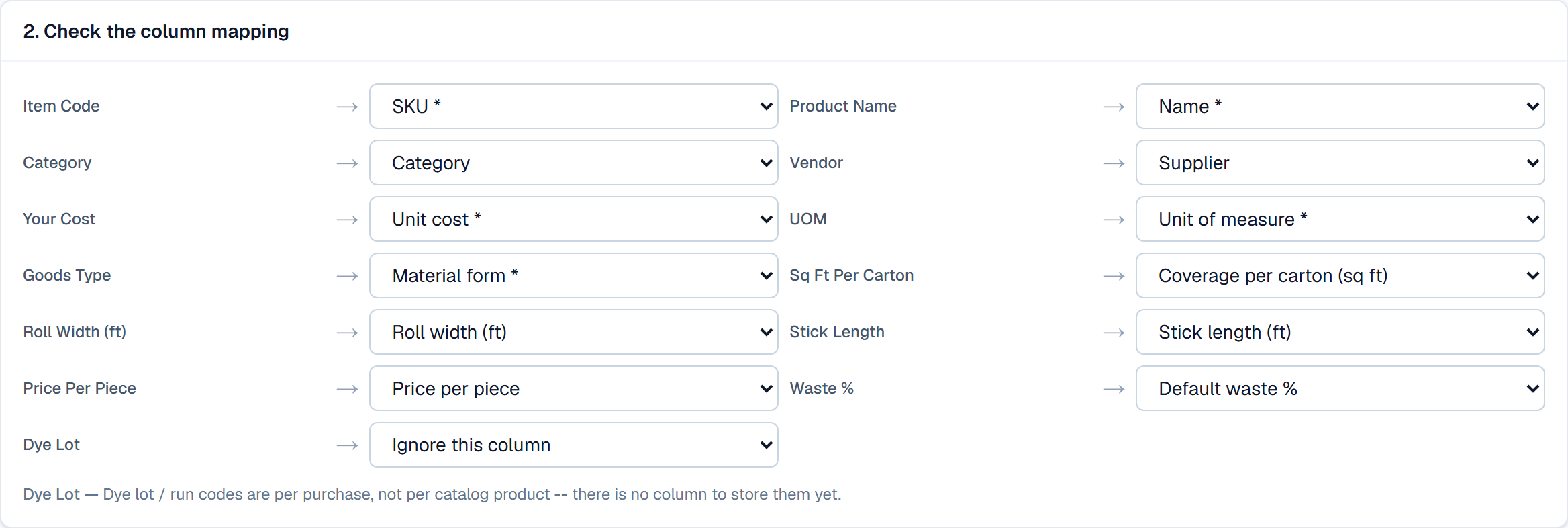
4

Matching up the columns

Matching up the columns
Tap the picture to open it full size

What this screen is for

Your supplier calls it Item Code, FlooringFlow calls it SKU. This screen shows what it worked out for itself and lets you correct anything it got wrong.

What to do

Read down the list. Anything it could not place is set to Ignore this column — change it if it matters. Columns it deliberately ignores, like a dye lot, say why underneath.

What happens next

Change any dropdown and the preview below re-reads your file straight away.

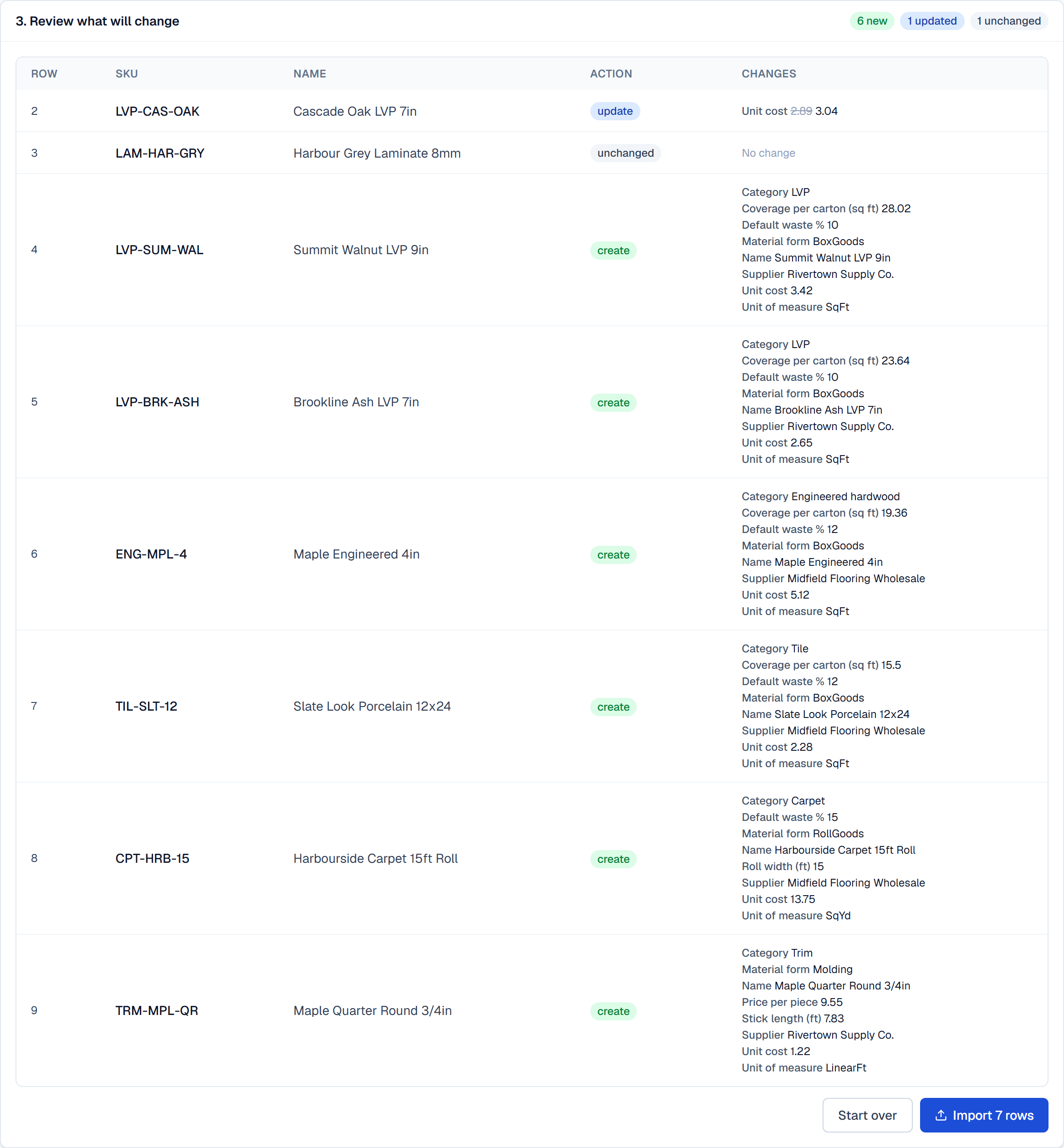
5

See exactly what will change

See exactly what will change
Tap the picture to open it full size

What this screen is for

The whole point of this screen. Every row is labelled create, update or unchanged before anything is written, and the Changes column spells out the old price and the new one.

What to do

Check the updates. A supplier file that quietly halves a cost is how a quote goes out wrong, and this is your chance to spot it.

What happens next

An import is all or nothing. If any row is broken, nothing at all is imported — you fix the file and come back, rather than ending up with half a price list.

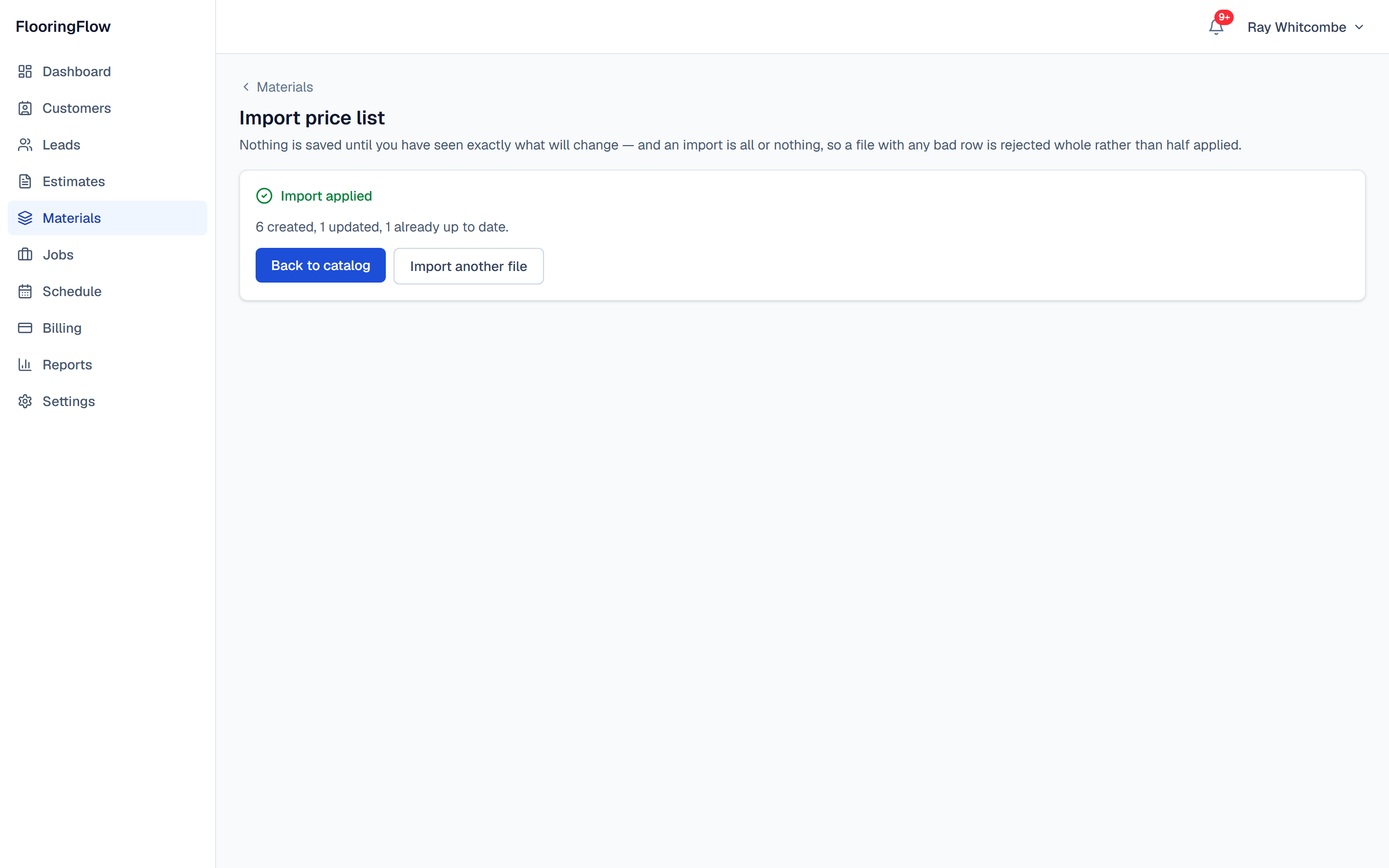
6

Imported

Imported
Tap the picture to open it full size

What this screen is for

Confirmation of what actually happened, counted the same way the preview promised.

What to do

Back to catalog to see the new products, or Import another file for your next supplier.

What happens next

Every new product is immediately available in the takeoff's material dropdowns.

The price, the upgrades, and the signature

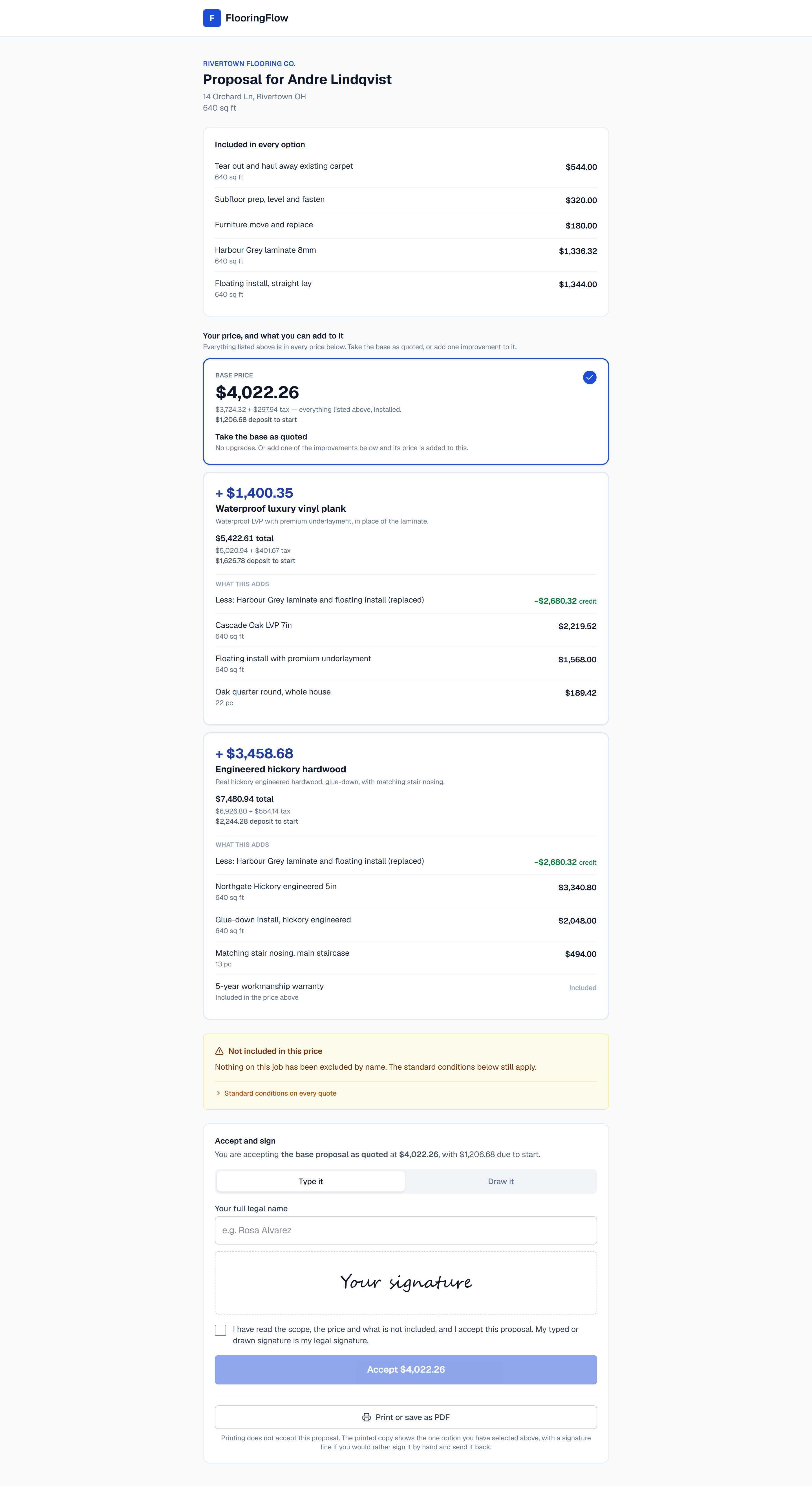
What the customer sees. One price they can accept as quoted, the improvements they can add to it and what each one costs, what is not included spelled out, and a signature at the bottom that turns whichever they chose into a job.

1

One price, and what you can add to it

One price, and what you can add to it
Tap the picture to open it full size

What this screen is for

One price the customer can say yes to, and under it the improvements worth offering with what each one costs on top. Everything the job includes either way — tear-out, subfloor prep, moving furniture — is listed once at the top, so no option looks like it is missing something.

What to do

Take the base as quoted is a card the customer can tap like any other, so the answer “just do what you quoted” is one press rather than a phone call. Each upgrade shows what it adds, its full price, the tax and the deposit needed to start.

What happens next

Whichever card they tap is the one the signature at the bottom applies to.

2

What is not included

What is not included
Tap the picture to open it full size

What this screen is for

The list that stops the argument later. Anything you are deliberately not doing is printed on the proposal the customer signs, not buried in a phone call nobody remembers.

What to do

Read it with them. If something on the list should be included, add it to the estimate and resend.

What happens next

Below it is the acceptance line, showing the option they chose and the deposit due.

3

Signing it

Signing it
Tap the picture to open it full size

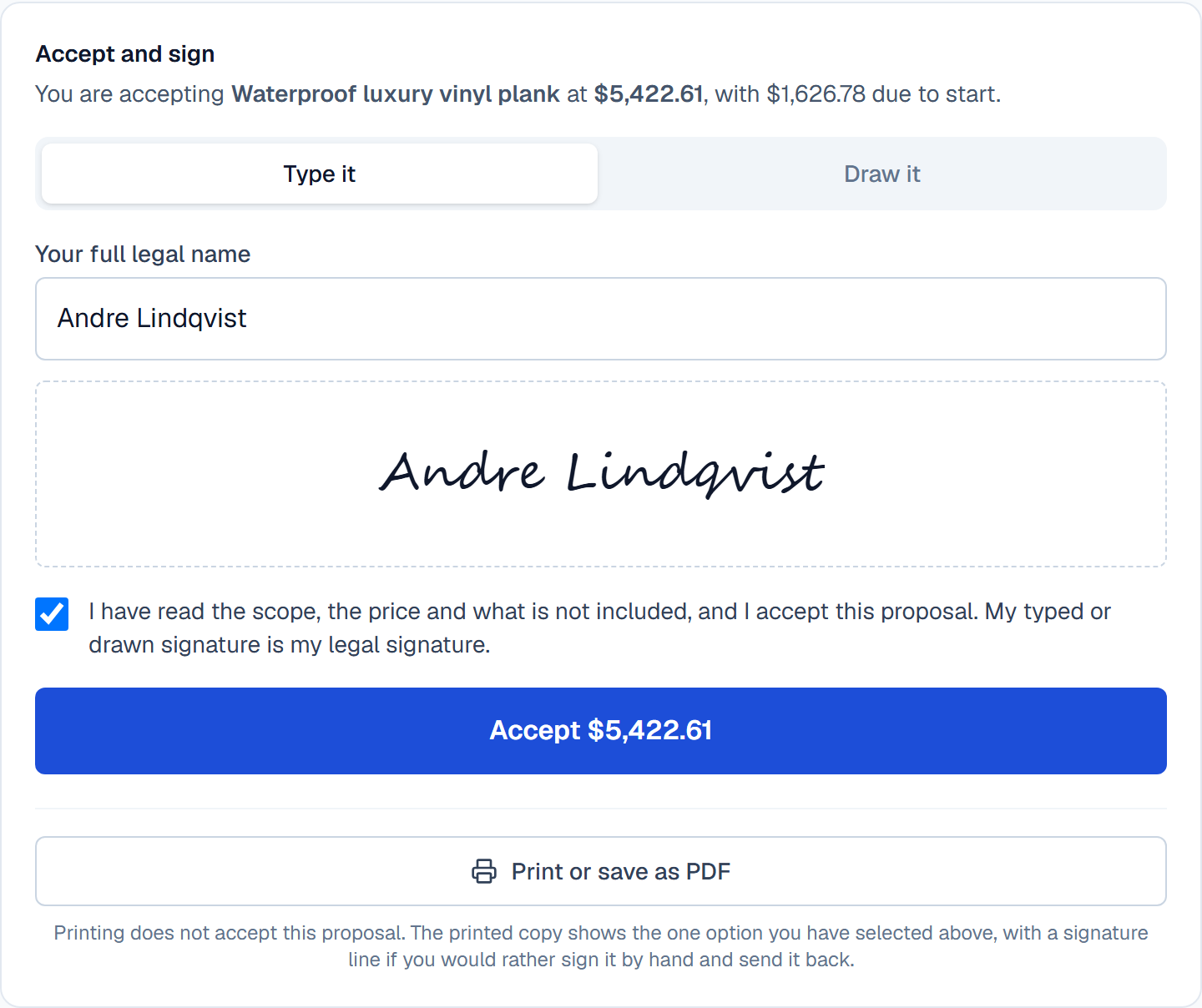
What this screen is for

A real signature, captured on whatever the customer happens to be holding. Type it, or switch to Draw it and sign with a finger on a phone.

What to do

They type their full legal name, tick the box to say they have read the scope, the price and the exclusions, and press the Accept button with the price on it.

What happens next

The signature is sealed together with the exact wording and price they agreed to, so neither side can change it afterwards.

4

Accepted — and it is now a job

Accepted — and it is now a job
Tap the picture to open it full size

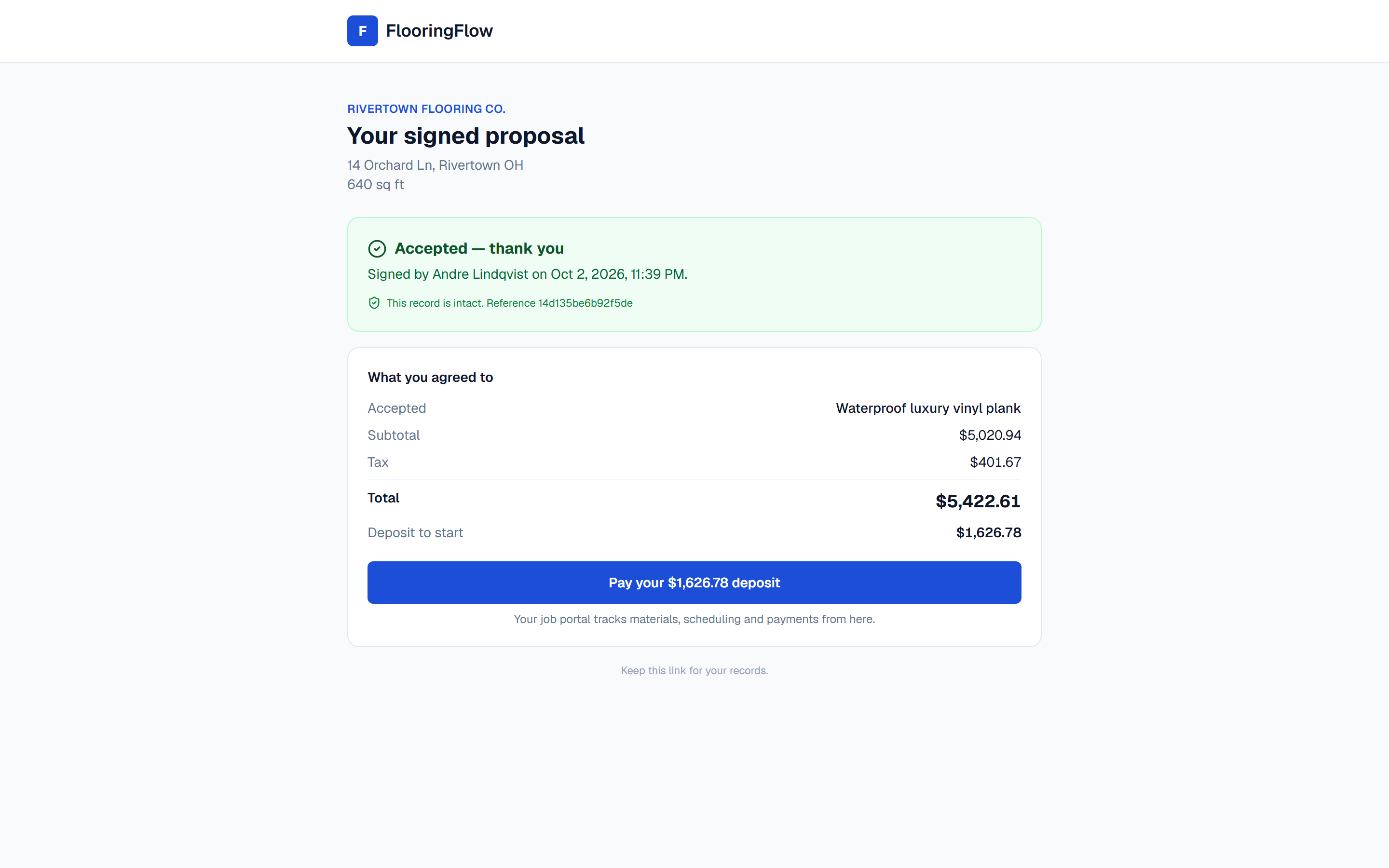
What this screen is for

The customer's receipt. It shows who signed, when, what they agreed to, and a reference that proves the record has not been altered since.

What to do

The customer keeps this link. The deposit button takes them straight to paying it.

What happens next

On your side the estimate is now Approved, the job exists, the deposit and final invoices are raised, and the job's checklist is ready for the crew.

Putting crews on the board

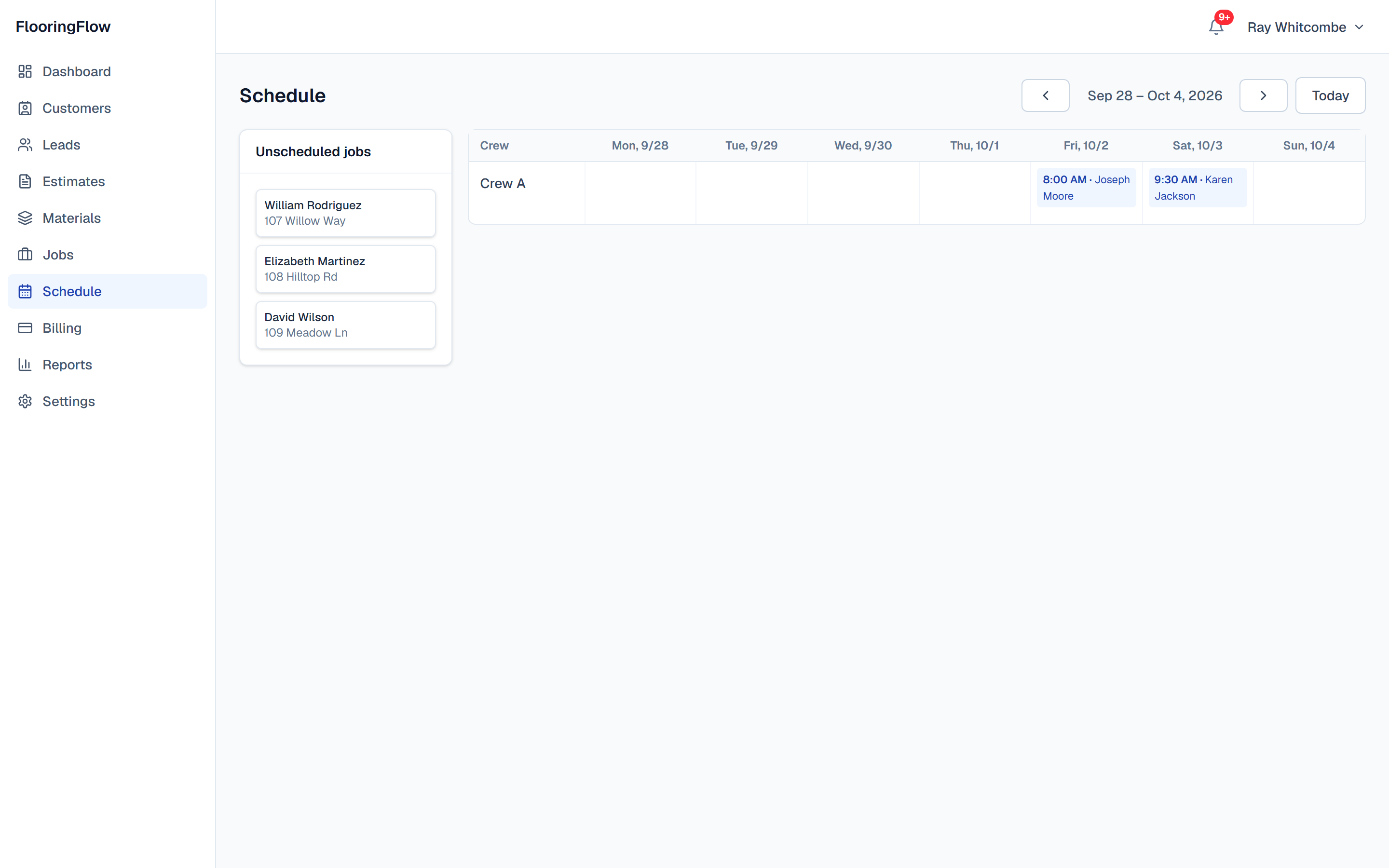
One week, one row per crew. Jobs whose deposit has landed queue up on the left until you drag them onto a day.

1

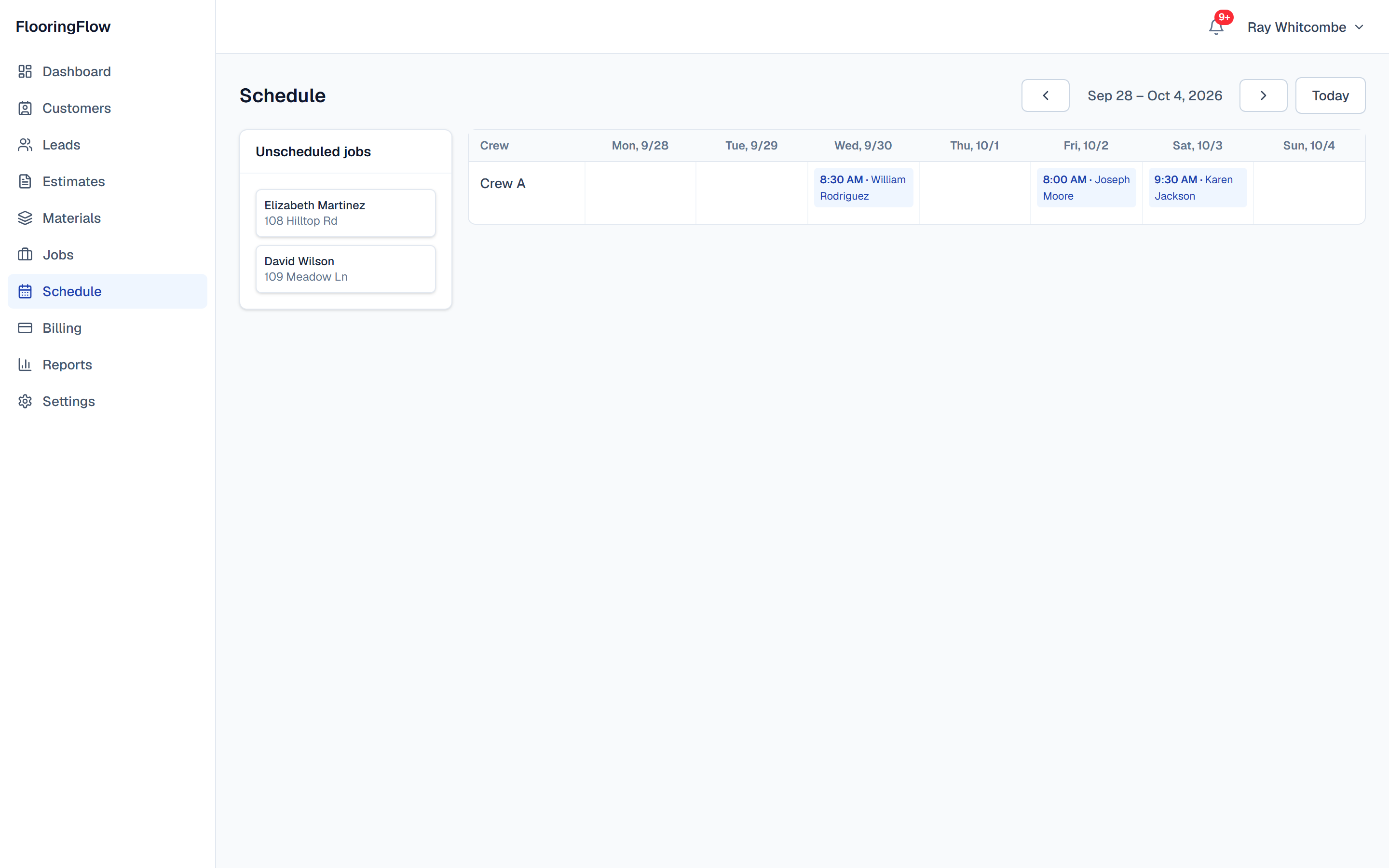
The week at a glance

The week at a glance
Tap the picture to open it full size

What this screen is for

Where everybody is this week. Only jobs that have actually paid their deposit appear in the waiting list on the left, so you cannot accidentally book work that has not been paid for.

What to do

Use the arrows to move between weeks and Today to come back. Click any booking to open that job.

What happens next

Drag a waiting job onto the day and crew you want it on.

2

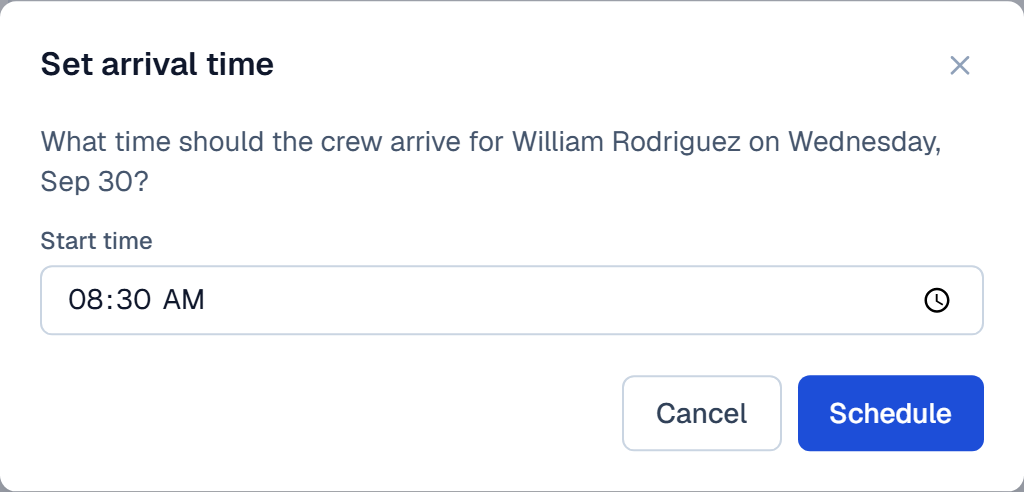
Setting the arrival time

Setting the arrival time
Tap the picture to open it full size

What this screen is for

Dropping a job on a day asks one question: what time is the crew turning up. That time is what the customer sees on their status page, as a window rather than an exact minute.

What to do

Set the start time and press Schedule.

What happens next

The job moves onto the board, the crew is assigned, and the status becomes Scheduled. The crew sees it on the installer app on their phone the same moment.

3

Booked

Booked
Tap the picture to open it full size

What this screen is for

The job now sits on the crew's row, with its arrival time and the customer's name.

What to do

Drag it again to move it. The customer's status page updates with the new date on its own.

What happens next

Nothing else needs doing until the crew starts the job.

Getting paid

Deposit up front, balance at the end, and a page the customer can check without phoning you. FlooringFlow raises both invoices the moment a job is created.

1

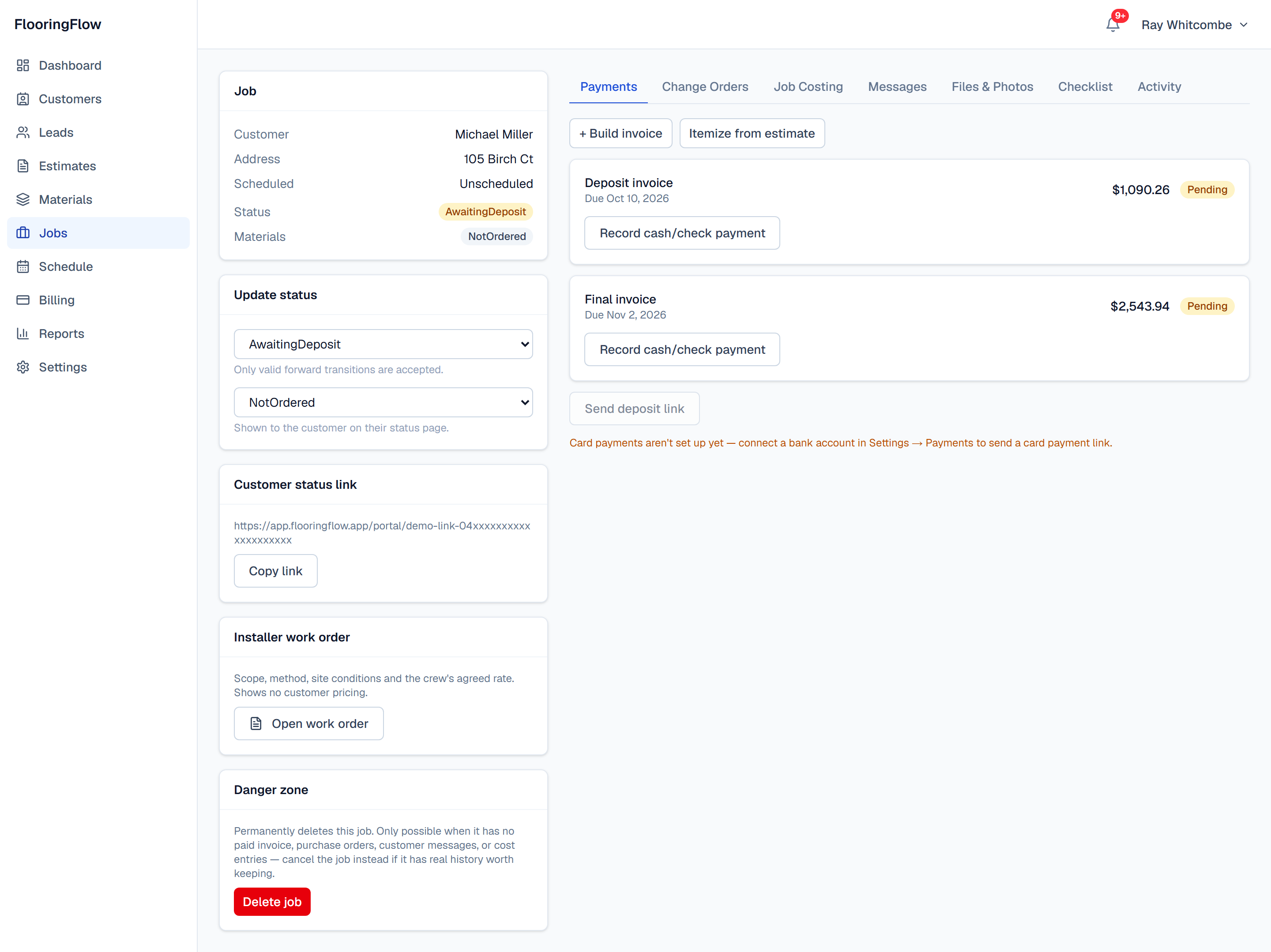
The money side of a job

The money side of a job
Tap the picture to open it full size

What this screen is for

Both invoices for this job in one place. The deposit is raised when the job is created and the balance is due at the end — you do not have to remember to raise either.

What to do

Record cash/check payment is how you log money that did not come through the app — cash, a check, Zelle or Venmo. Send deposit link stays greyed out until you have connected a bank account under Settings; once you have, it emails the customer a card payment link.

What happens next

Marking the deposit paid is what releases the job onto the schedule board. Until then it will not appear in the waiting list.

2

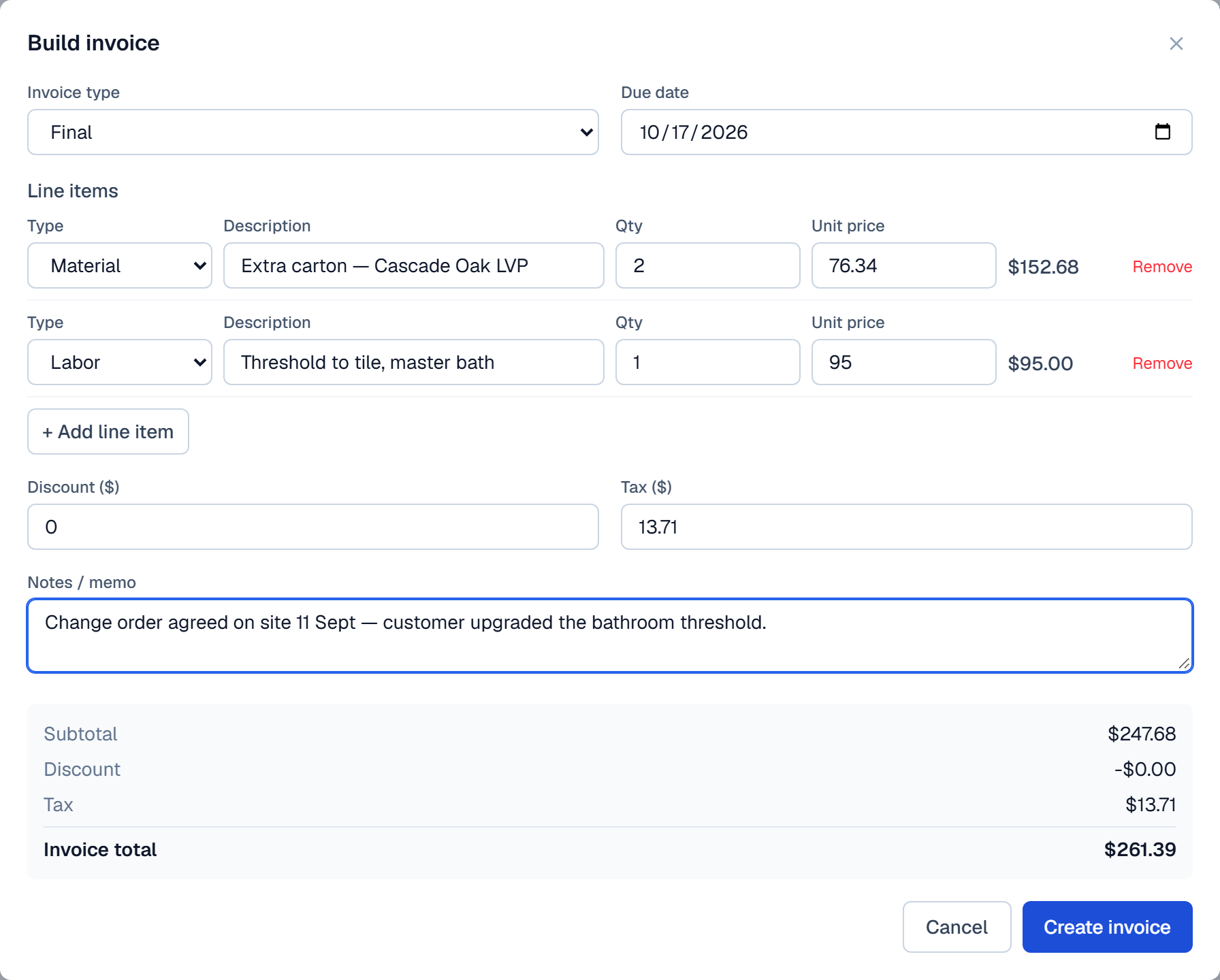
Building an invoice by hand

Building an invoice by hand
Tap the picture to open it full size

What this screen is for

For change orders and extras. Itemise exactly what the customer is being charged for, so the bill does not arrive as one unexplained number.

What to do

Add a line per item, put anything you have knocked off in Discount, and use the memo to say why the extra exists. Itemize from estimate, back on the Payments tab, copies the estimate's lines across instead of retyping them.

What happens next

The invoice appears on the job and on the Billing list, and the customer can pay it from their status page.

4

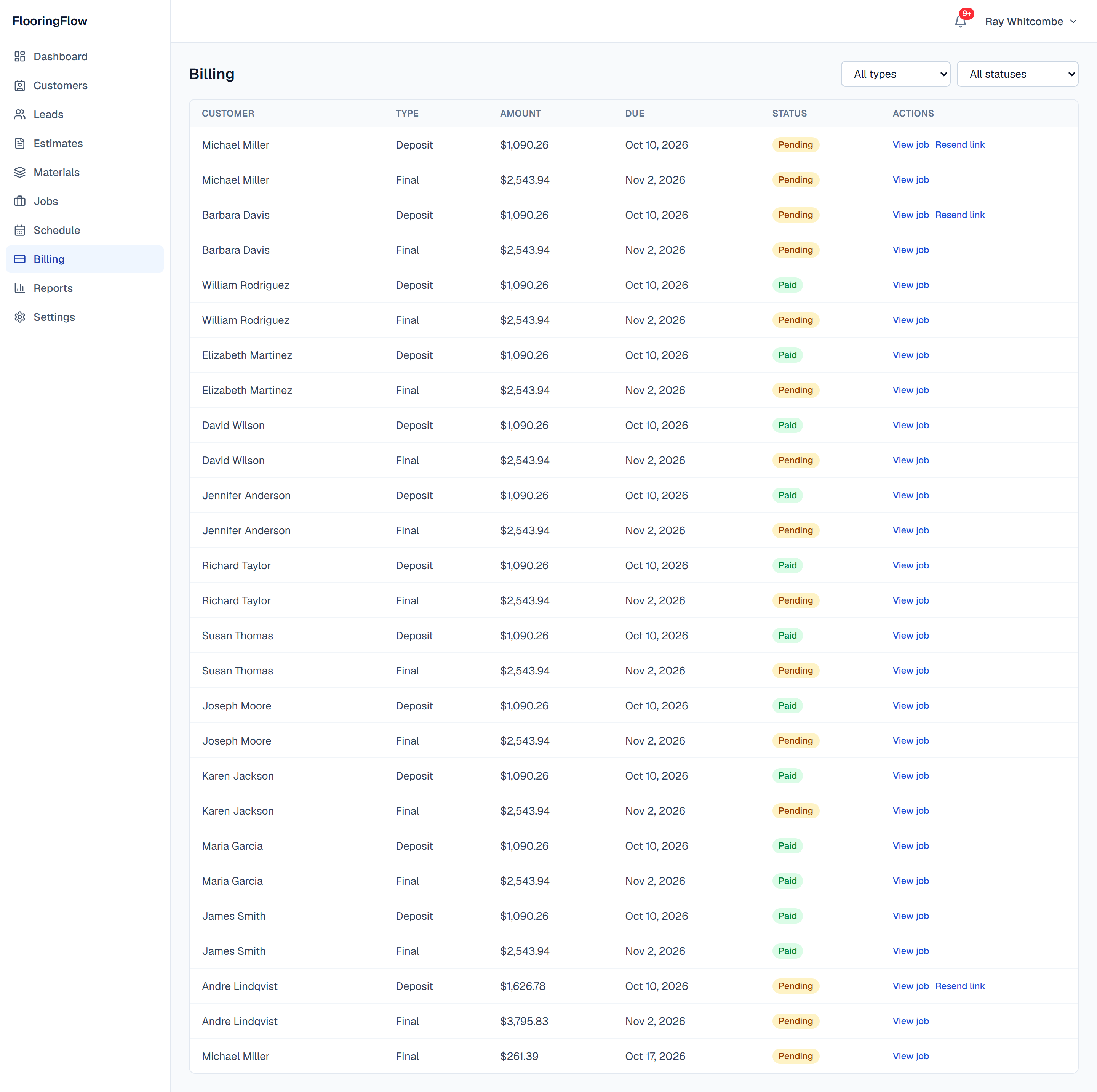
Everything you are owed

Everything you are owed
Tap the picture to open it full size

What this screen is for

Every invoice across every job. This is the screen for chasing money, not the screen for your own FlooringFlow subscription — that lives under Settings.

What to do

Filter by Pending to see what has not been paid. Resend link sends the customer another card payment link without you having to open the job.

What happens next

Paid invoices drop out of the Pending filter as soon as the money lands.

5

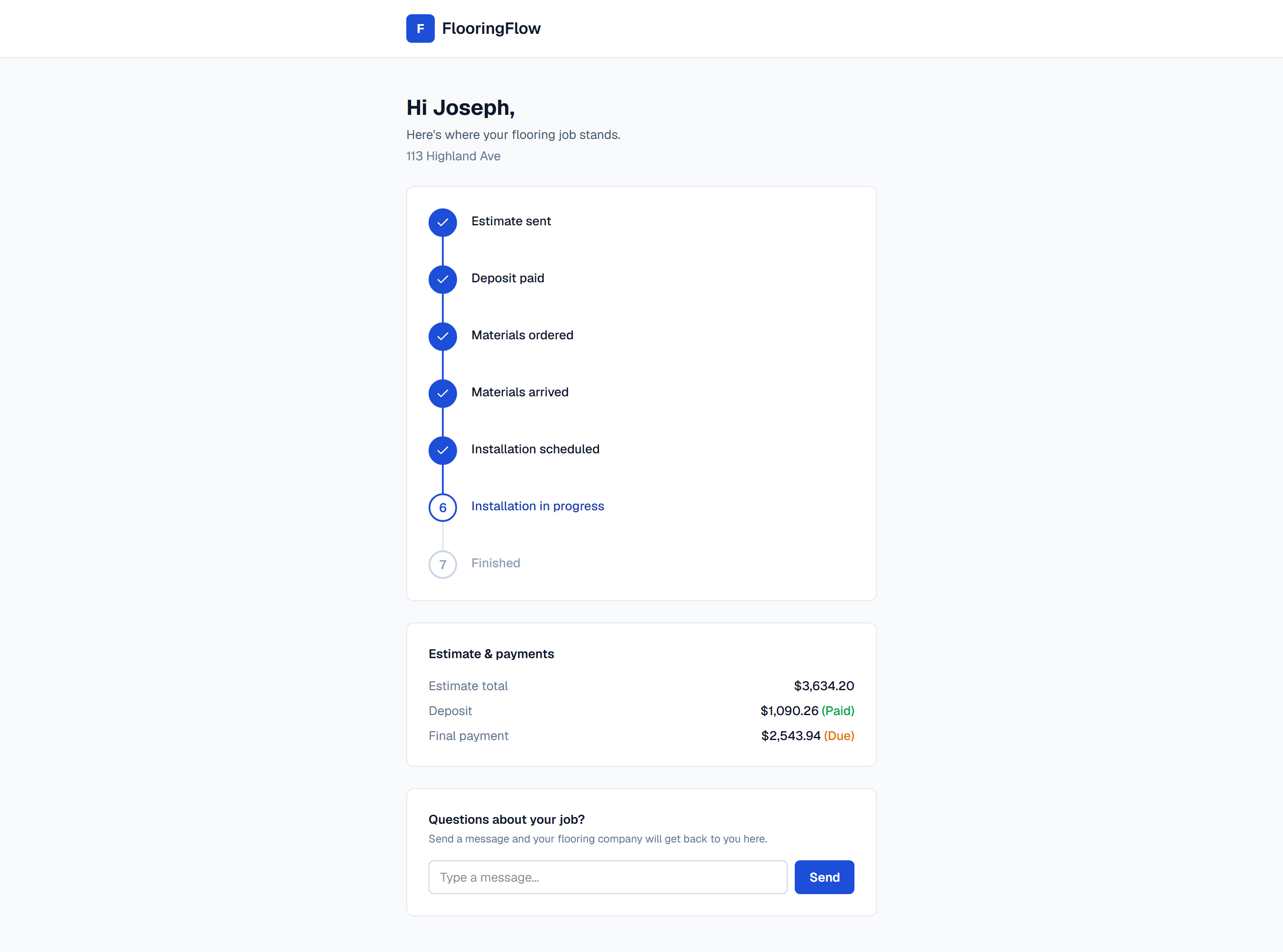
Their side of the job

Their side of the job
Tap the picture to open it full size

What this screen is for

What the customer sees when they open the link. Which stage the job has reached, what they have already paid, and what is still due. On the day it is booked, the scheduled stage also shows the date and the arrival window.

What to do

They can message you straight from here, and it lands in the job's Messages tab rather than your inbox, so it stays attached to the job. Once you have connected a bank account under Settings, a Pay button appears next to the amount due as well.

What happens next

This page updates itself. Every time you move the job on, the customer sees it without you having to tell them.

Screenshot index

Every picture in this guide is its own file in images/, named after the step it belongs to. Copy one straight out for the website, a release note or a training handout.

FileShowsSize (CSS px)
images/signup.pngCreate your account384 × 494
images/welcome-setup.pngSetting up — the part that decides whether your first quote is right494 × 80
images/first-run-dashboard.pngYour first day — an empty dashboard1440 × 900
images/login.pngSigning in day to day384 × 318
images/dashboard.pngThe dashboard, once work is flowing1440 × 1612
images/leads-list.pngYour lead list1440 × 900
images/new-lead.pngAdding the customer and the enquiry together512 × 368
images/lead-detail.pngThe enquiry page1440 × 900
images/estimates-list.pngEvery price you have out1440 × 900
images/estimate-new.pngBuilding the price1440 × 1092
images/estimate-detail.pngThe finished estimate1440 × 1463
images/takeoff-rooms.pngThe rooms you are flooring1024 × 896
images/takeoff-stairs.pngStairs, counted as steps1024 × 448
images/takeoff-trim.pngTrim, bought by the stick1024 × 207
images/takeoff-demolition.pngWhat is coming out first1024 × 287
images/takeoff-pricing.pngYour rates1024 × 317
images/takeoff-rollgoods-settings.pngCarpet: the roll, and what goes under it1024 × 603
images/takeoff-results.pngWhat to order1024 × 527
images/takeoff-waste.pngWhere the waste figure came from1024 × 827
images/takeoff-rollgoods.pngCarpet: what to buy, in linear feet1024 × 10996
images/takeoff-seam-diagram.pngThe cut plan, drawn990 × 1412
images/takeoff-cut-plans.pngTwo ways to cut it, and why this one990 × 485
images/takeoff-totals.pngThe bottom line1440 × 900
images/takeoff-line-items.pngThe takeoff, written up as a price1024 × 2364
images/materials-list.pngThe catalog1440 × 1164
images/material-new.pngAdding one product672 × 810
images/materials-import-pick.pngImporting a supplier price list1440 × 900
images/materials-import-mapping.pngMatching up the columns1168 × 393
images/materials-import-review.pngSee exactly what will change1168 × 1260
images/materials-import-done.pngImported1440 × 900
images/proposal-tiers.pngOne price, and what you can add to it1440 × 2634
images/proposal-exclusions.pngWhat is not included720 × 136
images/proposal-signature.pngSigning it720 × 604
images/proposal-accepted.pngAccepted — and it is now a job1440 × 900
images/schedule-week.pngThe week at a glance1440 × 900
images/schedule-arrival-time.pngSetting the arrival time512 × 246
images/schedule-booked.pngBooked1440 × 900
images/job-payments.pngThe money side of a job1440 × 1079
images/invoice-builder.pngBuilding an invoice by hand896 × 720
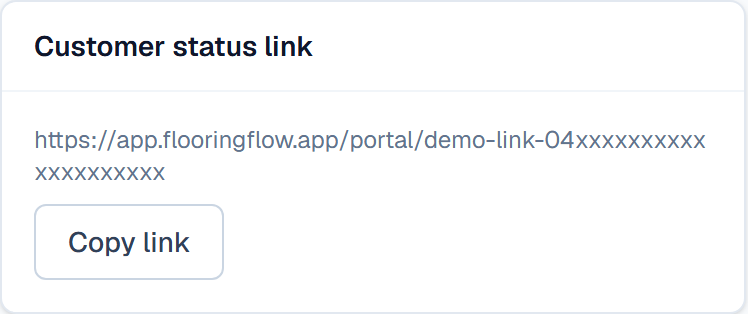
images/job-status-link.pngThe link you send the customer374 × 157
images/billing-list.pngEverything you are owed1440 × 1433
images/customer-portal.pngTheir side of the job1440 × 1069